Themes
Themes allow you to change the colors and fonts of various components provided by React Navigation. You can use themes to:
- Customize the colors and fonts to match your brand
- Provide light and dark themes based on the time of the day or user preference
Basic usage
To pass a custom theme, you can pass the theme prop to the navigation container.
- Static
- Dynamic
import * as React from 'react';
import { createStaticNavigation, DefaultTheme } from '@react-navigation/native';

const MyTheme = {
  ...DefaultTheme,
  colors: {
    ...DefaultTheme.colors,
    background: 'rgb(140, 201, 125)',
    primary: 'rgb(255, 45, 85)',
  },
};

const Navigation = createStaticNavigation(MyTabs);

export default function App() {
  return (
    <Navigation
      theme={MyTheme}
    />
  );
}
import * as React from 'react';
import { DefaultTheme, NavigationContainer } from '@react-navigation/native';

const MyTheme = {
  ...DefaultTheme,
  colors: {
    ...DefaultTheme.colors,
    background: 'rgb(140, 201, 125)',
    primary: 'rgb(255, 45, 85)',
  },
};

export default function App() {
  return (
    <NavigationContainer
      theme={MyTheme}
    >
      <MyTabs />
    </NavigationContainer>
  );
}
You can change the theme prop dynamically and all the components will automatically update to reflect the new theme. If you haven't provided a theme prop, the default theme will be used.
Properties
A theme is a JS object containing a list of colors to use. It contains the following properties:
dark(boolean): Whether this is a dark theme or a light themecolors(object): Various colors used by react navigation components:primary(ColorValue): The primary color of the app used to tint various elements. Usually you'll want to use your brand color for this.background(ColorValue): The color of various backgrounds, such as the background color for the screens.card(ColorValue): The background color of card-like elements, such as headers, tab bars etc.text(ColorValue): The text color of various elements.border(ColorValue): The color of borders, e.g. header border, tab bar border etc.notification(ColorValue): The color of notifications and badge (e.g. badge in bottom tabs).
fonts(object): Various fonts used by react navigation components:regular(object): Style object for the primary font used in the app.medium(object): Style object for the semi-bold variant of the primary font.bold(object): Style object for the bold variant of the primary font.heavy(object): Style object for the extra-bold variant of the primary font.
The style objects for fonts contain the following properties:
fontFamily(string): The name of the font family (or font stack on Web) to use, e.g.RobotoorHelvetica Neue. The system fonts are used by default.fontWeight(string): The font weight to use. Valid values arenormal,bold,100,200,300,400,500,600,700,800,900.
When creating a custom theme, you will need to provide all of these properties.
Example theme
import { Platform } from 'react-native';

const WEB_FONT_STACK =
  'system-ui, "Segoe UI", Roboto, Helvetica, Arial, sans-serif, "Apple Color Emoji", "Segoe UI Emoji", "Segoe UI Symbol"';

const MyTheme = {
  dark: false,
  colors: {
    primary: 'rgb(255, 45, 85)',
    background: 'rgb(242, 242, 242)',
    card: 'rgb(255, 255, 255)',
    text: 'rgb(28, 28, 30)',
    border: 'rgb(199, 199, 204)',
    notification: 'rgb(255, 69, 58)',
  },
  fonts: Platform.select({
    web: {
      regular: {
        fontFamily: WEB_FONT_STACK,
        fontWeight: '400',
      },
      medium: {
        fontFamily: WEB_FONT_STACK,
        fontWeight: '500',
      },
      bold: {
        fontFamily: WEB_FONT_STACK,
        fontWeight: '600',
      },
      heavy: {
        fontFamily: WEB_FONT_STACK,
        fontWeight: '700',
      },
    },
    ios: {
      regular: {
        fontFamily: 'System',
        fontWeight: '400',
      },
      medium: {
        fontFamily: 'System',
        fontWeight: '500',
      },
      bold: {
        fontFamily: 'System',
        fontWeight: '600',
      },
      heavy: {
        fontFamily: 'System',
        fontWeight: '700',
      },
    },
    default: {
      regular: {
        fontFamily: 'sans-serif',
        fontWeight: 'normal',
      },
      medium: {
        fontFamily: 'sans-serif-medium',
        fontWeight: 'normal',
      },
      bold: {
        fontFamily: 'sans-serif',
        fontWeight: '600',
      },
      heavy: {
        fontFamily: 'sans-serif',
        fontWeight: '700',
      },
    },
  }),
};
Providing a theme will take care of styling of all the official navigators.
Built-in themes
React Navigation provides basic light and dark themes on all platforms and dynamic Material Design themes on Android:
DefaultTheme
DarkTheme
MaterialLightTheme
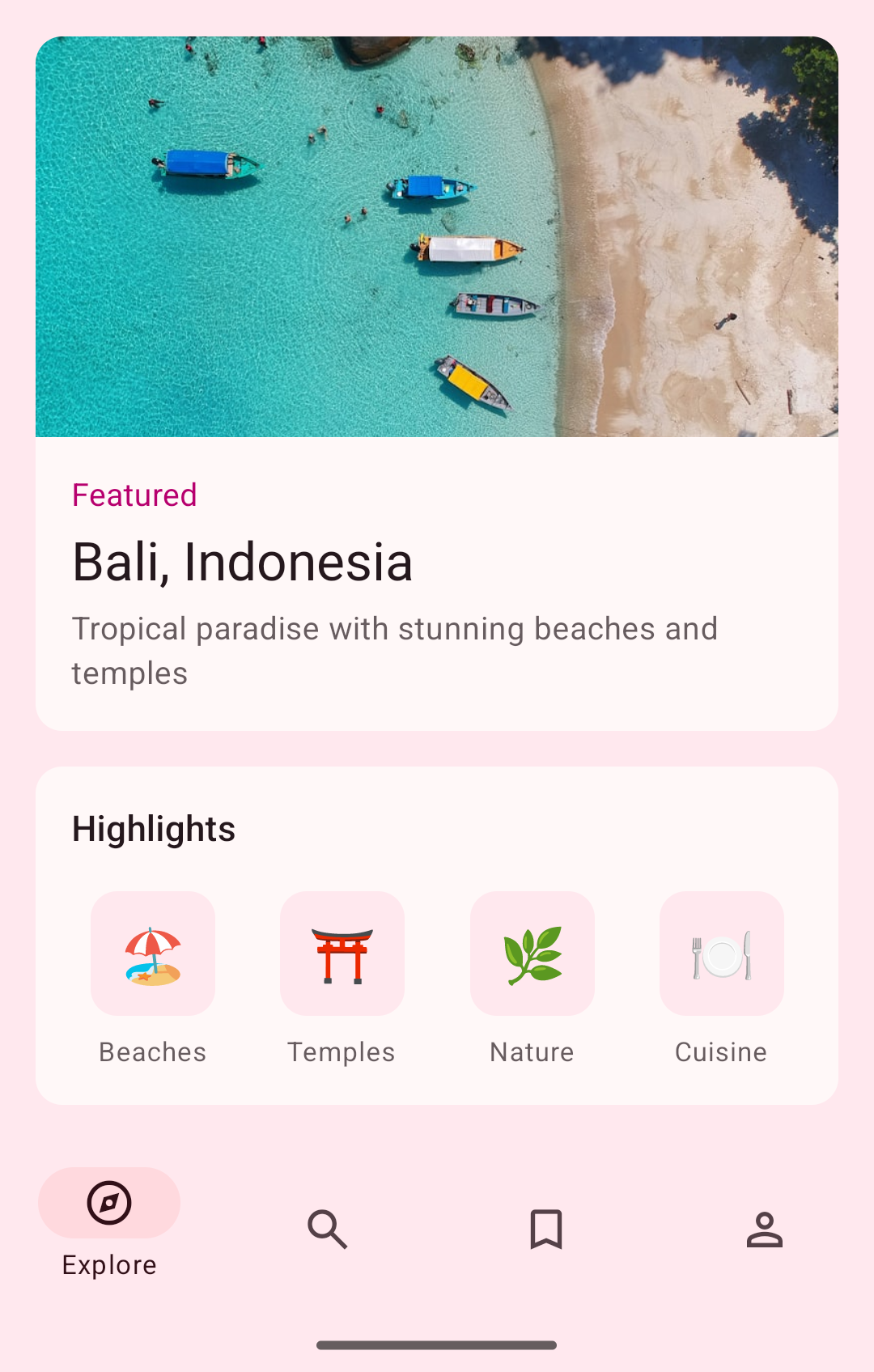
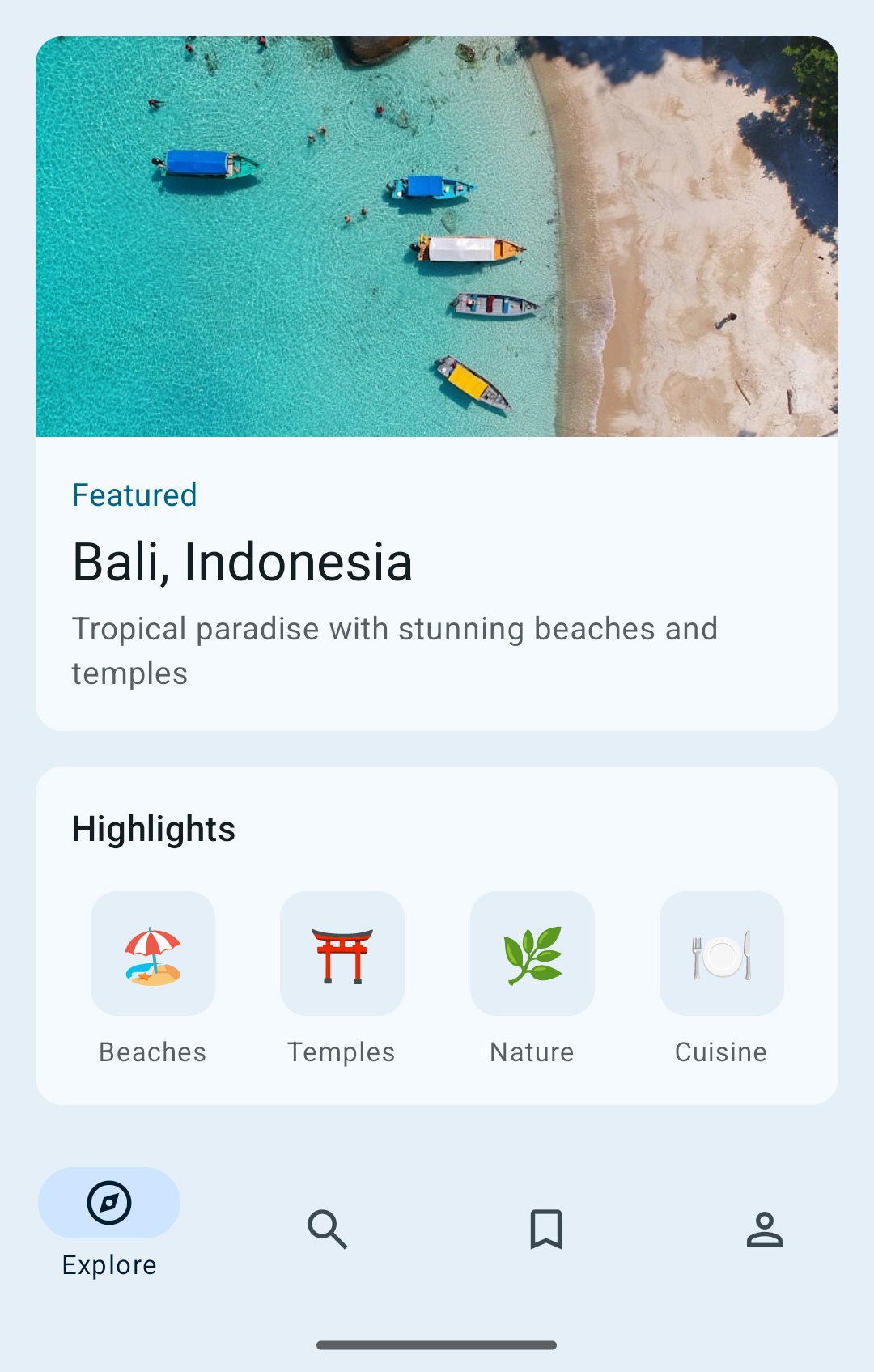
MaterialDarkTheme
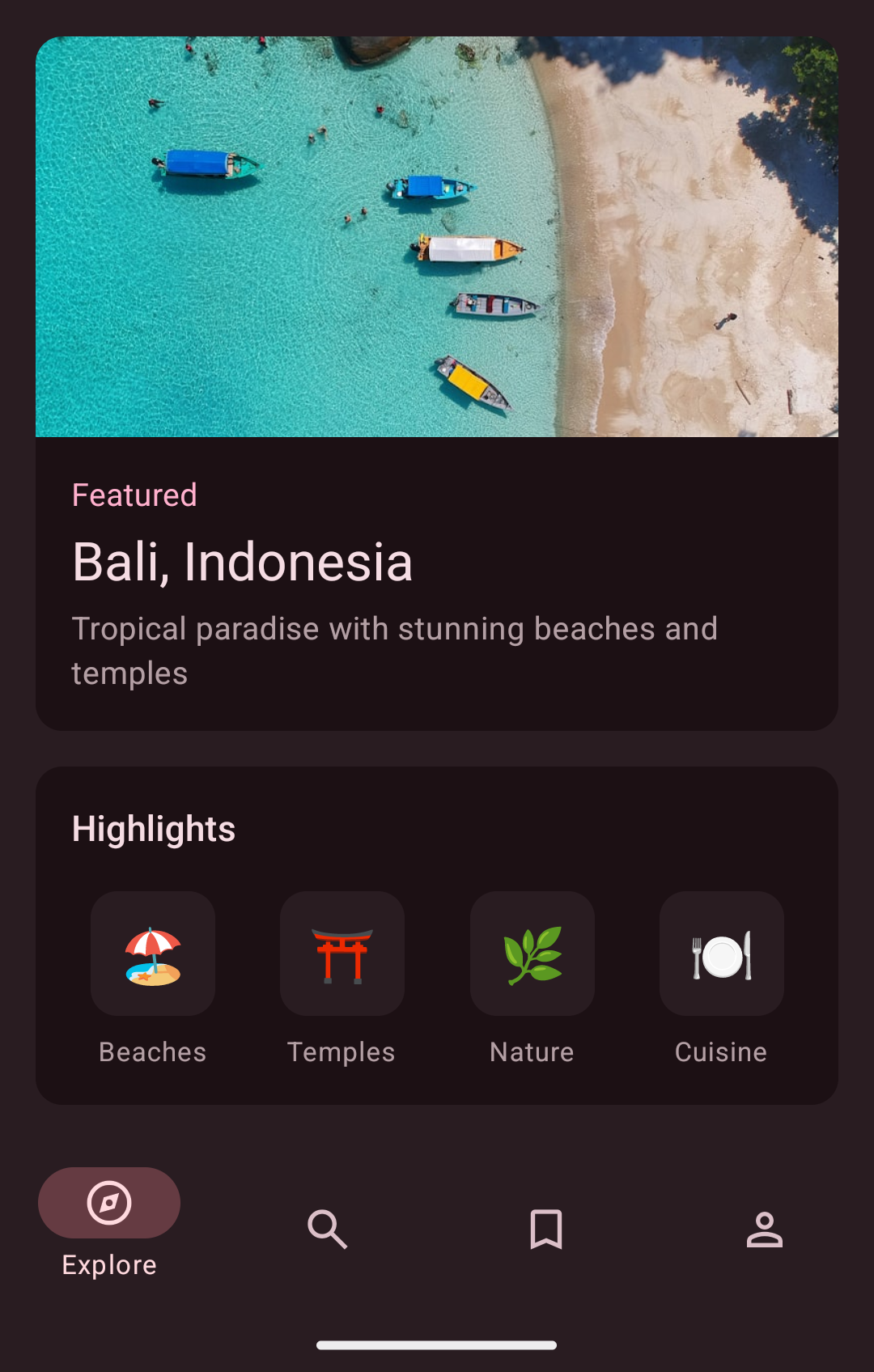
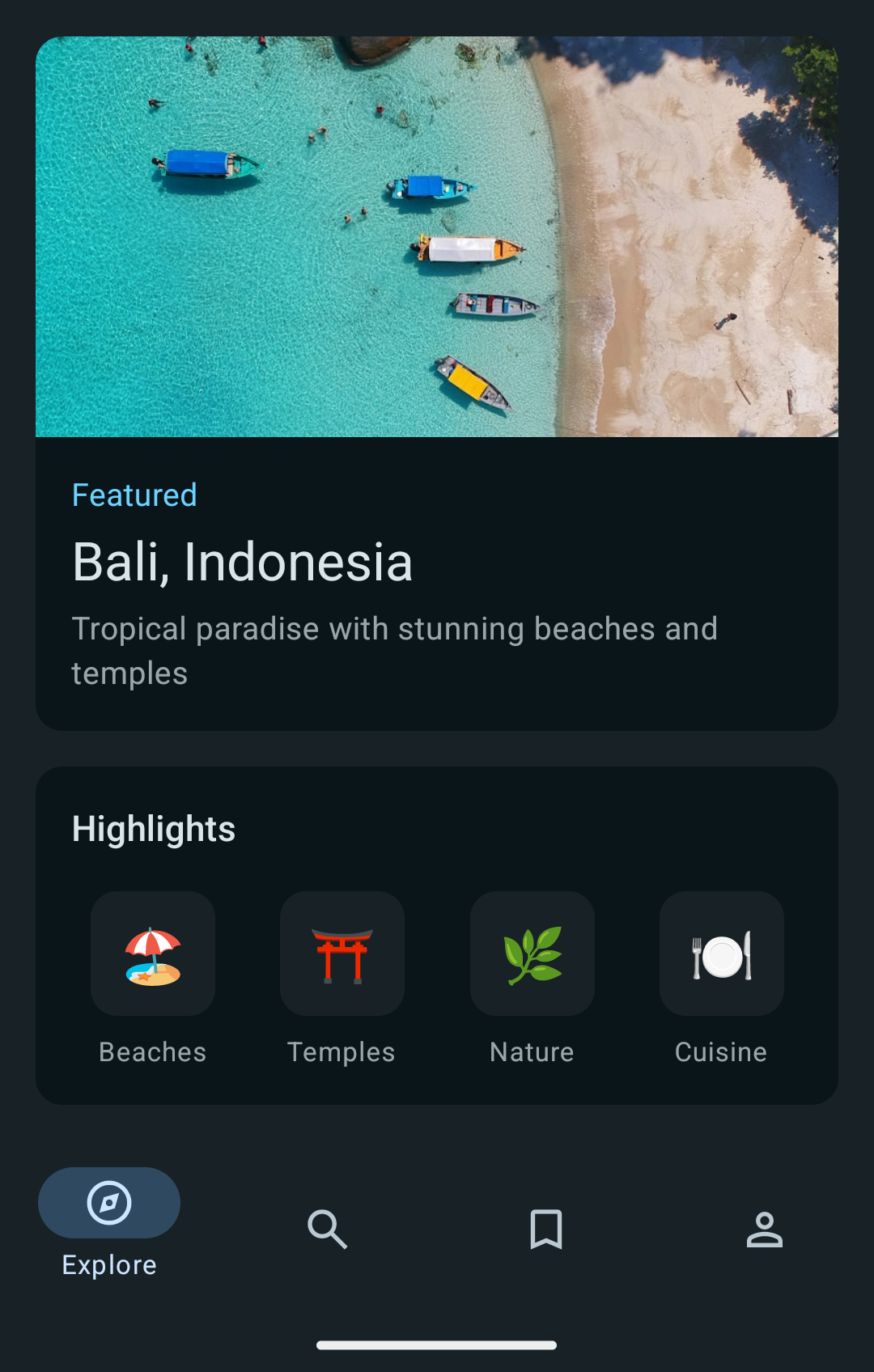
The Material themes use platform colors to provide dynamic colors that adapt to the user's wallpaper and theme preferences, and are available on Android 14 (API level 34) and above. On unsupported platforms or versions, they fallback to a non-dynamic theme based on Material Design colors.
If you'd like to use a different fallback theme, you can use the Platform API:
const MyTheme =
  Platform.OS === 'android' && Platform.Version >= 34
    ? MaterialLightTheme
    : DefaultTheme;
All built-in themes use system fonts which vary based on the platform.
They can be imported from the @react-navigation/native package:
import {
  DefaultTheme,
  DarkTheme,
  MaterialLightTheme,
  MaterialDarkTheme,
} from '@react-navigation/native';
Using platform colors
Theme colors support ColorValue type, which means you can use PlatformColor, DynamicColorIOS on native, and CSS custom properties on Web for more flexibility.
Example theme using PlatformColor:
import { Platform, PlatformColor } from 'react-native';
import { DefaultTheme } from '@react-navigation/native';

const MyTheme = {
  ...DefaultTheme,
  colors: Platform.select({
    ios: {
      primary: PlatformColor('systemRed'),
      background: PlatformColor('systemGroupedBackground'),
      card: PlatformColor('tertiarySystemBackground'),
      text: PlatformColor('label'),
      border: PlatformColor('separator'),
      notification: PlatformColor('systemRed'),
    },
    android: {
      primary: PlatformColor('@android:color/system_accent2_600'),
      background: PlatformColor('@android:color/system_neutral2_50'),
      card: PlatformColor('@android:color/system_neutral2_10'),
      text: PlatformColor('@android:color/system_neutral2_900'),
      border: PlatformColor('@android:color/system_neutral2_300'),
      notification: PlatformColor('@android:color/system_error_600'),
    },
    default: DefaultTheme.colors,
  }),
};
This allows your app's navigation UI to automatically adapt to system theme changes and use native colors.
When using dynamic colors like PlatformColor or DynamicColorIOS, React Navigation cannot automatically adjust colors in some scenarios (e.g., adjusting the text color based on background color). In these cases, it will fall back to pre-defined colors. You may need to pass appropriate colors for such components if needed via options.
Keeping the native theme in sync
If you're changing the theme in the app, native UI elements such as Alert, ActionSheet etc. won't reflect the new theme. You can do the following to keep the native theme in sync:
React.useLayoutEffect(() => {
  const colorScheme = theme.dark ? 'dark' : 'light';

  if (Platform.OS === 'web') {
    document.documentElement.style.colorScheme = colorScheme;
  } else {
    Appearance.setColorScheme(colorScheme);
  }
}, [theme.dark]);
Alternatively, you can use the useColorScheme hook to get the current native color scheme and update the theme accordingly.
Using the operating system preferences
On iOS 13+ and Android 10+, you can get user's preferred color scheme ('dark' or 'light') with the useColorScheme hook:
- Static
- Dynamic
import {
  createStaticNavigation,
  DefaultTheme,
  DarkTheme,
} from '@react-navigation/native';
import { View, Text, useColorScheme } from 'react-native';

const Navigation = createStaticNavigation(MyTabs);

export default function App() {
  const scheme = useColorScheme();

  return (
    <Navigation
      theme={scheme === 'dark' ? DarkTheme : DefaultTheme}
    />
  );
}
import {
  DefaultTheme,
  DarkTheme,
  NavigationContainer,
} from '@react-navigation/native';
import { View, Text, useColorScheme } from 'react-native';

export default function App() {
  const scheme = useColorScheme();

  return (
    <NavigationContainer
      theme={scheme === 'dark' ? DarkTheme : DefaultTheme}
    >
      <MyTabs />
    </NavigationContainer>
  );
}
Using the current theme in your own components
To gain access to the theme in any component that is rendered inside the navigation container, you can use the useTheme hook. It returns the theme object:
- Static
- Dynamic
import {
  createStaticNavigation,
  DefaultTheme,
  DarkTheme,
  useTheme,
} from '@react-navigation/native';
import { View, Text, TouchableOpacity, useColorScheme } from 'react-native';

function MyButton() {
  const { colors } = useTheme();

  return (
    <TouchableOpacity
      style={{
        backgroundColor: colors.card,
      }}
    >
      <Text style={{ color: colors.text }}>Button!</Text>
    </TouchableOpacity>
  );
}
import {
  DefaultTheme,
  DarkTheme,
  useTheme,
  NavigationContainer,
} from '@react-navigation/native';
import { View, Text, TouchableOpacity, useColorScheme } from 'react-native';

function MyButton() {
  const { colors } = useTheme();

  return (
    <TouchableOpacity
      style={{
        backgroundColor: colors.card,
      }}
    >
      <Text style={{ color: colors.text }}>Button!</Text>
    </TouchableOpacity>
  );
}