# React Navigation 2.x Documentation
## Getting started
Source: https://reactnavigation.org/docs/2.x/getting-started
React Navigation is born from the React Native community's need for an extensible yet easy-to-use navigation solution written entirely in JavaScript (so you can read and understand all of the source), on top of powerful native primitives.
Before you commit to using React Navigation for your project, you might want to read the [anti-pitch](pitch.md) — it will help you to understand the tradeoffs that we have chosen along with the areas where we consider the library to be deficient currently.
## What to expect
If you're already familiar with React Native then you'll be able to get moving with React Navigation quickly! If not, you may want to read sections 1 to 4 (inclusive) of [React Native Express](http://reactnativeexpress.com/) first, then come back here when you're done.
What follows within the _Fundamentals_ section of this documentation is a tour of the most important aspects of React Navigation. It should cover enough for you to know how to build your typical small mobile application, and give you the background that you need to dive deeper into the more advanced parts of React Navigation.
## Installation
Install the `react-navigation` package in your React Native project.
```bash npm2yarn
npm install react-navigation
```
## Hybrid iOS Applications (Skip for RN only projects)
If you're using React Navigation within a hybrid app - an iOS app that has both Swift/ObjC and React Native parts - you may be missing the `RCTLinkingIOS` subspec in your Podfile, which is installed by default in new RN projects. To add this, ensure your Podfile looks like the following:
```
pod 'React', :path => '../node_modules/react-native', :subspecs => [
. . . // other subspecs
'RCTLinkingIOS',
. . .
]
```
You're good to go! Continue to ["Hello React Navigation"](hello-react-navigation.md) to start writing some code.
---
## Hello React Navigation
Source: https://reactnavigation.org/docs/2.x/hello-react-navigation
In a web browser, you can link to different pages using an anchor (``) tag. When the user clicks on a link, the URL is pushed to the browser history stack. When the user presses the back button, the browser pops the item from the top of the history stack, so the active page is now the previously visited page. React Native doesn't have a built-in idea of a global history stack like a web browser does -- this is where React Navigation enters the story.
React Navigation's stack navigator provides a way for your app to transition between screens and manage navigation history. If your app uses only one stack navigator then it is conceptually similar to how a web browser handles navigation state - your app pushes and pops items from the navigation stack as users interact with it, and this results in the user seeing different screens. A key difference between how this works in a web browser and in React Navigation is that React Navigation's stack navigator provides the gestures and animations that you would expect on Android and iOS when navigating between routes in the stack.
All we need to get started using React Navigation is a function called `createStackNavigator`.
## Creating a stack navigator
`createStackNavigator` is a function that returns a React component. It takes _a route configuration object_ and, optionally, _an options object_ (we omit this below, for now). Because the `createStackNavigator` function returns a React component, we can export it directly from `App.js` to be used as our App's root component.
```javascript
// In App.js in a new project
import React from 'react';
import { View, Text } from 'react-native';
import { createStackNavigator } from 'react-navigation';
class HomeScreen extends React.Component {
render() {
return (
Home Screen
);
}
}
export default createStackNavigator({
Home: {
screen: HomeScreen,
},
});
```
→ Run this code
If you run this code, you will see a screen with an empty navigation bar and a grey content area containing your `HomeScreen` component. The styles you see for the navigation bar and the content area are the default configuration for a stack navigator, we'll learn how to configure those later.
> The casing of the route name doesn't matter -- you can use lowercase `home` or capitalized `Home`, it's up to you. We prefer capitalizing our route names.
> The only required configuration for a route is the `screen` component. You can read more about the other options available in the [StackNavigator reference](stack-navigator.md).
In React Native, the component exported from `App.js` is the entry point (or root component) for your app -- it is the component from which every other component descends. It's often useful to have more control over the component at the root of your app than you would get from exporting the result of `createStackNavigator`, so let's export a component that just renders our `RootStack` stack navigator.
```js
const RootStack = createStackNavigator({
Home: {
screen: HomeScreen,
},
});
export default class App extends React.Component {
render() {
return
Details Screen
);
}
}
const RootStack = createStackNavigator(
{
Home: HomeScreen,
Details: DetailsScreen,
},
{
initialRouteName: 'Home',
}
);
// Other code for App component here...
```
Now our stack has two _routes_, a `Home` route and a `Details` route. The `Home` route corresponds to the `HomeScreen` component, and the `Details` route corresponds to the `DetailsScreen` component. The initial route for the stack is the `Home` route. The natural question at this point is: "how do I go from the Home route to the Details route?". That is covered in the next section.
## Summary
- React Native doesn't have a built-in API for navigation like a web browser does. React Navigation provides this for you, along with the iOS and Android gestures and animations to transition between screens.
- `createStackNavigator` is a function that takes a route configuration object and an options object and returns a React component.
- The keys in the route configuration object are the route names and the values are the configuration for that route. The only required property on the configuration is the `screen` (the component to use for the route).
- To specify what the initial route in a stack is, provide an `initialRouteName` on the stack options object.
- [Full source of what we have built so far](https://snack.expo.io/@react-navigation/hello-react-navigation-v2).
---
## Supported React Native versions
Source: https://reactnavigation.org/docs/2.x/supported-react-native-versions
Currently at the time of writing, `react-navigation@2.x` will work on most of the previous `react-native` versions, until the [lean core effort](https://github.com/facebook/react-native/issues/23313) finally removes `AsyncStorage` out of `react-native`.
If you are using [react-native-screens](react-native-screens.md) (supported in `react-navigation@^2.14.0`), you will need to be aware of its own supported `react-native` version too.
> Please note that the statements above may not be correct for a particular `react-native` version. If you notice a version that is not working properly, feel free to either file an [issue](https://github.com/react-navigation/react-navigation.github.io/issues/new) or correct it in this page.
---
## Moving between screens
Source: https://reactnavigation.org/docs/2.x/navigating
In the previous section, ["Hello React Navigation"](hello-react-navigation.md), we defined a stack navigator with two routes (`Home` and `Details`), but we didn't learn how to let a user navigate from `Home` to `Details` (although we did learn how to change the _initial_ route in our code, but forcing our users to clone our repository and change the route in our code in order to see another screen is arguably among the worst user experiences one could imagine).
If this was a web browser, we'd be able to write something like this:
```
Go to Details
```
Another way to write this would be:
```
{ document.location.href = "details.html"; }}>Go to Details
```
We'll do something similar to the latter, but rather than using a `document` global we'll use the `navigation` prop that is passed down to our screen components.
## Navigating to a new screen
```js
import React from 'react';
import { Button, View, Text } from 'react-native';
import { createStackNavigator } from 'react-navigation';
class HomeScreen extends React.Component {
render() {
return (
Home Screen
this.props.navigation.navigate('Details')}
/>
);
}
}
// ... other code from the previous section
```
→ Run this code
Let's break this down:
- `this.props.navigation`: the `navigation` prop is passed in to every **screen component** ([definition](glossary-of-terms.md#screen-component)) in stack navigator (more about this later in ["The navigation prop in depth"](navigation-prop.md)).
- `navigate('Details')`: we call the `navigate` function (on the `navigation` prop — naming is hard!) with the name of the route that we'd like to move the user to.
> If we call `this.props.navigation.navigate` with a route name that we haven't defined on a stack navigator, nothing will happen. Said another way, we can only navigate to routes that have been defined on our stack navigator — we cannot navigate to an arbitrary component.
So we now have a stack with two routes: 1) the Home route 2) the Details route. What would happen if we navigated to the Details route again, from the Details screen?
## Navigate to a route multiple times
```js
class DetailsScreen extends React.Component {
render() {
return (
Details Screen
this.props.navigation.navigate('Details')}
/>
);
}
}
```
→ Run this code
If you run this code, you'll notice that when you tap "Go to Details... again" that it doesn't do anything! This is because we are already on the Details route. The `navigate` function roughly means "go to this screen", and if you are already on that screen then it makes sense that it would do nothing.
Let's suppose that we actually _want_ to add another details screen. This is pretty common in cases where you pass in some unique data to each route (more on that later when we talk about `params`!). To do this, we can change `navigate` to `push`. This allows us to express the intent to add another route regardless of the existing navigation history.
```js
this.props.navigation.push('Details')}
/>
```
→ Run this code
Each time you call `push` we add a new route to the navigation stack. When you call `navigate` it first tries to find an existing route with that name, and only pushes a new route if there isn't yet one on the stack.
## Going back
The header provided by stack navigator will automatically include a back button when it is possible to go back from the active screen (if there is only one screen in the navigation stack, there is nothing that you can go back to, and so there is no back button).
Sometimes you'll want to be able to programmatically trigger this behavior, and for that you can use `this.props.navigation.goBack();`.
```js
class DetailsScreen extends React.Component {
render() {
return (
Details Screen
this.props.navigation.push('Details')}
/>
this.props.navigation.navigate('Home')}
/>
this.props.navigation.goBack()}
/>
);
}
}
```
→ Run this code
> On Android, React Navigation hooks in to the hardware back button and fires the `goBack()` function for you when the user presses it, so it behaves as the user would expect.
Another common requirement is to be able to go back _multiple_ screens -- for example, if you are several screens deep in a stack and want to dismiss all of them to go back to the first screen. In this case, we know that we want to go back to `Home` so we can use `navigate('Home')` (not `push`! try that out and see the difference). Another alternative would be `navigation.popToTop()`, which goes back to the first screen in the stack.
## Summary
- `this.props.navigation.navigate('RouteName')` pushes a new route to the stack navigator if it's not already in the stack, otherwise it jumps to that screen.
- We can call `this.props.navigation.push('RouteName')` as many times as we like and it will continue pushing routes.
- The header bar will automatically show a back button, but you can programmatically go back by calling `this.props.navigation.goBack()`. On Android, the hardware back button just works as expected.
- You can go back to an existing screen in the stack with `this.props.navigation.navigate('RouteName')`, and you can go back to the first screen in the stack with `this.props.navigation.popToTop()`.
- The `navigation` prop is available to all screen components (components defined as screens in route configuration and rendered by React Navigation as a route).
- [Full source of what we have built so far](https://snack.expo.io/@react-navigation/going-back-v2).
---
## Navigation lifecycle
Source: https://reactnavigation.org/docs/2.x/navigation-lifecycle
In the previous section, we worked with a stack navigator that has two screens (`Home` and `Details`) and learned how to use `this.props.navigation.navigate('RouteName')` to navigate between the routes.
An important question in this context is: what happens with `Home` when we navigate away from it, or when we come back to it? How does a route find out that a user is leaving it or coming back to it?
Coming to react-navigation from the web, you may assume that when user navigates from route A to route B, A will unmount (its `componentWillUnmount` is called) and A will mount again when user comes back to it. While these React lifecycle methods are still valid and are used in react-navigation, their usage differs from the web. This is driven by more complex needs of mobile navigation.
## Example scenario
Consider a stack navigator with screens A and B. After navigating to A, its `componentDidMount` is called. When pushing B, its `componentDidMount` is also called, but A remains mounted on the stack and its `componentWillUnmount` is therefore not called.
When going back from B to A, `componentWillUnmount` of B is called, but `componentDidMount` of A is not because A remained mounted the whole time.
Similar results can be observed (in combination) with other navigators as well. Consider a tab navigator with two tabs, where each tab is a stack navigator:
```jsx
const HomeStack = createStackNavigator({
Home: HomeScreen,
Details: DetailsScreen,
});
const SettingsStack = createStackNavigator({
Settings: SettingsScreen,
Profile: ProfileScreen,
});
const TabNavigator = createBottomTabNavigator({
Home: HomeStack,
Settings: SettingsStack,
});
```
We start on the `HomeScreen` and navigate to `DetailsScreen`. Then we use the tab bar to switch to the `SettingsScreen` and navigate to `ProfileScreen`. After this sequence of operations is done, all 4 of the screens are mounted! If you use the tab bar to switch back to the `HomeStack`, you'll notice you'll be presented with the `DetailsScreen` - the navigation state of the `HomeStack` has been preserved!
## React Navigation lifecycle events
Now that we understand how React lifecycle methods work in React Navigation, let's answer the question we asked at the beginning: "How do we find out that a user is leaving it or coming back to it?"
React Navigation emits events to screen components that subscribe to them. There are four different events that you can subscribe to: `willFocus`, `willBlur`, `didFocus` and `didBlur`. Read more about them in the [API reference](navigation-prop.md#addlistener---subscribe-to-updates-to-navigation-lifecycle).
Many of your use cases may be covered with the [`withNavigationFocus` HOC](with-navigation-focus.md) or the [`
Home Screen
{
/* 1. Navigate to the Details route with params */
this.props.navigation.navigate('Details', {
itemId: 86,
otherParam: 'anything you want here',
});
}}
/>
);
}
}
class DetailsScreen extends React.Component {
render() {
/* 2. Get the param, provide a fallback value if not available */
const { navigation } = this.props;
const itemId = navigation.getParam('itemId', 'NO-ID');
const otherParam = navigation.getParam('otherParam', 'some default value');
return (
Details Screen
itemId: {JSON.stringify(itemId)}
otherParam: {JSON.stringify(otherParam)}
this.props.navigation.push('Details', {
itemId: Math.floor(Math.random() * 100),
})
}
/>
this.props.navigation.navigate('Home')}
/>
this.props.navigation.goBack()}
/>
);
}
}
```
→ Run this code
> You can also directly access the params object with `this.props.navigation.state.params`. This may be `null` if no params were supplied, and so it's usually easier to just use `getParam` so you don't have to deal with that case.
> If you want to access the params directly through props (eg. `this.props.itemId`) rather than `this.props.navigation.getParam`, you may use a community-developed [react-navigation-props-mapper](https://github.com/vonovak/react-navigation-props-mapper) package.
## Summary
- `navigate` and `push` accept an optional second argument to let you pass parameters to the route you are navigating to. For example: `this.props.navigation.navigate('RouteName', {paramName: 'value'})`.
- You can read the params through `this.props.navigation.getParam`
- As an alternative to `getParam`, you may use `this.props.navigation.state.params`. It is `null` if no parameters are specified.
- [Full source of what we have built so far](https://snack.expo.io/@react-navigation/navigate-with-params-v2).
---
## Configuring the header bar
Source: https://reactnavigation.org/docs/2.x/headers
By now you're probably tired of seeing a blank grey bar on the top of your screen — you're ready for some [flair](https://memegenerator.net/img/images/600x600/14303485/stan-flair-office-space.jpg). So let's jump in to configuring the header bar.
## Setting the header title
A screen component can have a static property called `navigationOptions` which is either an object or a function that returns an object that contains various configuration options. The one we use for the header title is `title`, as demonstrated in the following example.
```js
class HomeScreen extends React.Component {
static navigationOptions = {
title: 'Home',
};
/* render function, etc */
}
class DetailsScreen extends React.Component {
static navigationOptions = {
title: 'Details',
};
/* render function, etc */
}
```
→ Run this code
> `createStackNavigator` uses platform conventions by default, so on iOS the title will be centered and on Android it will be left-aligned.
## Using params in the title
In order to use params in the title, we need to make `navigationOptions` a function that returns a configuration object. It might be tempting to try to use `this.props` inside of `navigationOptions`, but because it is a static property of the component, `this` does not refer to an instance of the component and therefore no props are available. Instead, if we make `navigationOptions` a function then React Navigation will call it with an object containing `{ navigation, navigationOptions, screenProps }` -- in this case, all we care about is `navigation`, which is the same object that is passed to your screen props as `this.props.navigation`. You may recall that we can get the params from `navigation` through `navigation.getParam` or `navigation.state.params`, and so we do this below to extract a param and use it as a title.
```js
class DetailsScreen extends React.Component {
static navigationOptions = ({ navigation }) => {
return {
title: navigation.getParam('otherParam', 'A Nested Details Screen'),
};
};
/* render function, etc */
}
```
→ Run this code
The argument that is passed in to the `navigationOptions` function is an object with the following properties:
- `navigation` - The [navigation prop](navigation-prop.md) for the screen, with the screen's route at `navigation.state`.
- `screenProps` - The props passing from above the navigator component
- `navigationOptions` - The default or previous options that would be used if new values are not provided
We only needed the `navigation` prop in the above example but you may in some cases want to use `screenProps` or `navigationOptions`.
## Updating `navigationOptions` with `setParams`
It's often necessary to update the `navigationOptions` configuration for the active screen from the mounted screen component itself. We can do this using `this.props.navigation.setParams`
```js
/* Inside of render() */
this.props.navigation.setParams({ otherParam: 'Updated!' })}
/>
```
→ Run this code
## Adjusting header styles
There are three key properties to use when customizing the style of your header: `headerStyle`, `headerTintColor`, and `headerTitleStyle`.
- `headerStyle`: a style object that will be applied to the `View` that wraps the header. If you set `backgroundColor` on it, that will be the color of your header.
- `headerTintColor`: the back button and title both use this property as their color. In the example below, we set the tint color to white (`#fff`) so the back button and the header title would be white.
- `headerTitleStyle`: if we want to customize the `fontFamily`, `fontWeight` and other `Text` style properties for the title, we can use this to do it.
```js
class HomeScreen extends React.Component {
static navigationOptions = {
title: 'Home',
headerStyle: {
backgroundColor: '#f4511e',
},
headerTintColor: '#fff',
headerTitleStyle: {
fontWeight: 'bold',
},
};
/* render function, etc */
}
```
→ Run this code
There are a couple of things to notice here:
1. On iOS, the status bar text and icons are black, and this doesn't look great over a dark-colored background. We won't discuss it here, but you should be sure to configure the status bar to fit with your screen colors [as described in the status bar guide](status-bar.md).
2. The configuration we set only applies to the home screen; when we navigate to the details screen, the default styles are back. We'll look at how to share `navigationOptions` between screens now.
## Sharing common `navigationOptions` across screens
It is common to want to configure the header in a similar way across many screens. For example, your company brand color might be red and so you want the header background color to be red and tint color to be white. Conveniently, these are the colors we're using in our running example, and you'll notice that when you navigate to the `DetailsScreen` the colors go back to the defaults. Wouldn't it be awful if we had to copy the `navigationOptions` header style properties from `HomeScreen` to `DetailsScreen`, and for every single screen component we use in our app? Thankfully, we do not. We can instead move the configuration up to the stack navigator.
```js
class HomeScreen extends React.Component {
static navigationOptions = {
title: 'Home',
/* No more header config here! */
};
/* render function, etc */
}
/* other code... */
const RootStack = createStackNavigator(
{
Home: HomeScreen,
Details: DetailsScreen,
},
{
initialRouteName: 'Home',
/* The header config from HomeScreen is now here */
navigationOptions: {
headerStyle: {
backgroundColor: '#f4511e',
},
headerTintColor: '#fff',
headerTitleStyle: {
fontWeight: 'bold',
},
},
}
);
```
→ Run this code
Now, any screen that belongs to the `RootStack` will have our wonderful branded styles. Surely though, there must be a way to override these options if we need to?
## Overriding shared `navigationOptions`
The `navigationOptions` specified on your screen component are merged together with those of its parent stack navigator, with the options on the screen component taking precedence. Let's use this knowledge to invert the background and tint colors on the details screen.
```js
class DetailsScreen extends React.Component {
static navigationOptions = ({ navigation, navigationOptions }) => {
const { params } = navigation.state;
return {
title: params ? params.otherParam : 'A Nested Details Screen',
/* These values are used instead of the shared configuration! */
headerStyle: {
backgroundColor: navigationOptions.headerTintColor,
},
headerTintColor: navigationOptions.headerStyle.backgroundColor,
};
};
/* render function, etc */
}
```
→ Run this code
## Replacing the title with a custom component
Sometimes you need more control than just changing the text and styles of your title -- for example, you may want to render an image in place of the title, or make the title into a button. In these cases you can completely override the component used for the title and provide your own.
```js
class LogoTitle extends React.Component {
render() {
return (
→ Run this code
> You might be wondering, why `headerTitle` when we provide a component and not `title`, like before? The reason is that `headerTitle` is a property that is specific to a stack navigator, the `headerTitle` defaults to a `Text` component that displays the `title`.
## Additional configuration
You can read the full list of available `navigationOptions` for screens inside of a stack navigator in the [`createStackNavigator` reference](stack-navigator.md#navigationoptions-for-screens-inside-of-the-navigator).
## Summary
- You can customize the header inside of the `navigationOptions` static property on your screen components. Read the full list of options [in the API reference](stack-navigator.md#navigationoptions-for-screens-inside-of-the-navigator).
- The `navigationOptions` static property can be an object or a function. When it is a function, it is provided with an object with the `navigation` prop, `screenProps`, and `navigationOptions` on it.
- You can also specify shared `navigationOptions` in the stack navigator configuration when you initialize it. The static property takes precedence over that configuration.
- [Full source of what we have built so far](https://snack.expo.io/@react-navigation/custom-header-title-component-v2).
---
## Header buttons
Source: https://reactnavigation.org/docs/2.x/header-buttons
Now that we know how to customize the look of our headers, let's make them sentient! Actually perhaps that's ambitious, let's just make them able to respond to our touches in very well defined ways.
## Adding a button to the header
The most common way to interact with a header is by tapping on a button either to the left or the right of the title. Let's add a button to the right side of the header (one of the most difficult places to touch on your entire screen, depending on finger and phone size, but also a normal place to put buttons).
```js
class HomeScreen extends React.Component {
static navigationOptions = {
headerTitle: alert('This is a button!')}
title="Info"
color="#fff"
/>
),
};
}
```
→ Run this code
The binding of `this` in `navigationOptions` is _not_ the `HomeScreen` instance, so you can't call `setState` or any instance methods on it. This is pretty important because it's extremely common to want the buttons in your header to interact with the screen that the header belongs to. So, we will look how to do this next.
> Please note that a community-developed library for rendering buttons in the header with the correct styling is available: [react-navigation-header-buttons](https://github.com/vonovak/react-navigation-header-buttons).
## Header interaction with its screen component
The most commonly used pattern for giving a header button access to a function on the component instance is to use `params`. We'll demonstrate this with a classic example, the counter.
```js
class HomeScreen extends React.Component {
static navigationOptions = ({ navigation }) => {
return {
headerTitle: → Run this code
> React Navigation doesn't guarantee that your screen component will be mounted before the header. Because the `increaseCount` param is set in `componentDidMount`, we may not have it available to us in `navigationOptions`. This usually will not be a problem because `onPress` for `Button` and `Touchable` components will do nothing if the callback is null. If you have your own custom component here, you should make sure it behaves as expected with `null` for its press handler prop.
> As an alternative to `setParams`, you could use a state management library (such as Redux or MobX) and communicate between the header and the screen in the same way you would with two distinct components.
## Customizing the back button
`createStackNavigator` provides the platform-specific defaults for the back button. On iOS this includes a label next to the button, which shows the title of the previous screen when the title fits in the available space, otherwise it says "Back".
You can change the label behavior with `headerBackTitle` and `headerTruncatedBackTitle` ([read more](stack-navigator.md#headerbacktitle)).
To customize the back button image, you can use [headerBackImage](stack-navigator.md#headerbackimage).
## Overriding the back button
The back button will be rendered automatically in a stack navigator whenever it is possible for the user to go back from their current screen — in other words, the back button will be rendered whenever there is more than one screen in the stack.
Generally, this is what you want. But it's possible that in some circumstances that you want to customize the back button more than you can through the options mentioned above, in which case you can set the `headerLeft` option to a React Element that will be rendered, just as we did with `headerRight`. Alternatively, the `headerLeft` option also accepts a React Component, which can be used, for example, for overriding the onPress behavior of the back button. Read more about this in the [api reference](stack-navigator.md#headerleft).
## Summary
- You can set buttons in the header through the `headerLeft` and `headerRight` properties in `navigationOptions`.
- The back button is fully customizable with `headerLeft`, but if you just want to change the title or image, there are other `navigationOptions` for that — `headerBackTitle`, `headerTruncatedBackTitle`, and `headerBackImage`.
- [Full source of what we have built so far](https://snack.expo.io/@react-navigation/header-interacting-with-component-instance).
---
## Opening a full-screen modal
Source: https://reactnavigation.org/docs/2.x/modal
Dictionary.com provides no satisfactory definition of modal as it relates to user interfaces, but semantic UI describes it as follows:
> A modal displays content that temporarily blocks interactions with the main view
This sounds about right. A modal is like a popup — it's not part of your primary navigation flow — it usually has a different transition, a different way to dismiss it, and is intended to focus on one particular piece of content or interaction.
The purpose of explaining this as part of the React Navigation fundamentals is not only because this is a common use case, but also because the implementation requires knowledge of _nesting navigators_, which is an important part of React Navigation.
## Creating a modal stack
```js
class HomeScreen extends React.Component {
static navigationOptions = ({ navigation }) => {
const params = navigation.state.params || {};
return {
headerLeft: (
navigation.navigate('MyModal')}
title="Info"
color="#fff"
/>
),
/* the rest of this config is unchanged */
};
};
/* render function, etc */
}
class ModalScreen extends React.Component {
render() {
return (
This is a modal!
this.props.navigation.goBack()}
title="Dismiss"
/>
);
}
}
const MainStack = createStackNavigator(
{
Home: {
screen: HomeScreen,
},
Details: {
screen: DetailsScreen,
},
},
{
/* Same configuration as before */
}
);
const RootStack = createStackNavigator(
{
Main: {
screen: MainStack,
},
MyModal: {
screen: ModalScreen,
},
},
{
mode: 'modal',
headerMode: 'none',
}
);
```
→ Run this code
There are some important things to notice here:
- As we know, the stack navigator function returns a React component (remember we render `
Home Screen
this.props.navigation.navigate('Details')}
/>
);
}
}
```
→ Run this code
The ["Navigation prop reference"](navigation-prop.md) section goes into more detail on this, describes workarounds, and provides more information on other properties available on `this.props.navigation`.
## Navigation Prop
This prop will be passed into all screens, and it can be used for the following:
- `dispatch` will send an action up to the router
- `state` is the current route for the screen
- `getParam` is a helper to access a param that may be on the route
- `navigate`, `goBack`, etc are available to dispatch actions in a convenient way
Navigators can also accept a navigation prop, which they should get from the parent navigator, if there is one.
For more details, see the ["Navigation prop document"](navigation-prop.md).
## Navigation State
The state of a navigator generally looks something like this:
```
{
key: 'StackRouterRoot',
index: 1,
routes: [
{ key: 'A', routeName: 'Home' },
{ key: 'B', routeName: 'Profile' },
]
}
```
For this navigation state, there are two routes (which may be tabs, or cards in a stack). The index indicates the active route, which is "B".
## Route
Each route is a piece of navigation state which contains a key to identify it, and a "routeName" to designate the type of route. It can also contain arbitrary params:
```
{
key: 'B',
routeName: 'Profile',
params: { id: '123' }
}
```
## Child Navigation State
When composing navigators, it is possible for a route to be a navigation state. It would look like this:
```
{
key: 'B',
routeName: 'Profile',
params: { id: '123' },
index: 1,
routes: [ {...}, {...} ]
}
```
---
## Common mistakes
Source: https://reactnavigation.org/docs/2.x/common-mistakes
This section attempts to outline issues that users frequently encounter when first getting accustomed to using React Navigation and serves as a reference in some cases for error messages.
## Explicitly rendering more than one navigator
Most apps should only ever render one navigator inside of a React component, and this is usually somewhere near the root component of your app. This is a little bit counter-intuitive at first but it's important for the architecture of React Navigation.
Here's what you might write in your code -- note that this example would be incorrect:
```javascript
export default App extends React.Component {
render() {
/* In the root component we are rendering the app navigator */
return
Home!
);
}
}
class SettingsScreen extends React.Component {
render() {
return (
Settings!
);
}
}
export default createBottomTabNavigator({
Home: HomeScreen,
Settings: SettingsScreen,
});
```
→ Run this code
## Customizing the appearance
This is similar to how you would customize a stack navigator — there are some properties that are set when you initialize the tab navigator and others that can be customized per-screen in `navigationOptions`.
```js
// You can import Ionicons from @expo/vector-icons if you use Expo or
// react-native-vector-icons/Ionicons otherwise.
import Ionicons from 'react-native-vector-icons/Ionicons';
import { createBottomTabNavigator } from 'react-navigation';
export default createBottomTabNavigator(
{
Home: HomeScreen,
Settings: SettingsScreen,
},
{
navigationOptions: ({ navigation }) => ({
tabBarIcon: ({ focused, horizontal, tintColor }) => {
const { routeName } = navigation.state;
let iconName;
if (routeName === 'Home') {
iconName = `ios-information-circle${focused ? '' : '-outline'}`;
} else if (routeName === 'Settings') {
iconName = `ios-options${focused ? '' : '-outline'}`;
}
// You can return any component that you like here! We usually use an
// icon component from react-native-vector-icons
return (
→ Run this code
Let's dissect this:
- `tabBarIcon` is a property on `navigationOptions`, so we know we can use it on our screen components, but in this case chose to put it in the `createBottomTabNavigator` configuration in order to centralize the icon configuration for convenience.
- `tabBarIcon` is a function that is given the `focused` state, `tintColor`, and `horizontal` param, which is a boolean. If you take a peek further down in the configuration you will see `tabBarOptions` and `activeTintColor` and `inactiveTintColor`. These default to the iOS platform defaults, but you can change them here. The `tintColor` that is passed through to the `tabBarIcon` is either the active or inactive one, depending on the `focused` state (focused is active). The orientation state `horizontal` is `true` when the device is in landscape, otherwise is `false` for portrait.
- Read the [full API reference](bottom-tab-navigator.md) for further information on `createBottomTabNavigator` configuration options.
## Jumping between tabs
Switching from one tab to another has a familiar API — `this.props.navigation.navigate`.
```js
import { Button, Text, View } from 'react-native';
class HomeScreen extends React.Component {
render() {
return (
Home!
this.props.navigation.navigate('Settings')}
/>
);
}
}
class SettingsScreen extends React.Component {
render() {
return (
Settings!
this.props.navigation.navigate('Home')}
/>
);
}
}
```
→ Run this code
## A stack navigator for each tab
Usually tabs don't just display one screen — for example, on your Twitter feed, you can tap on a tweet and it brings you to a new screen within that tab with all of the replies. You can think of this as there being separate navigation stacks within each tab, and that's exactly how we will model it in React Navigation.
```js
import {
createBottomTabNavigator,
createStackNavigator,
} from 'react-navigation';
class DetailsScreen extends React.Component {
render() {
return (
Details!
);
}
}
class HomeScreen extends React.Component {
render() {
return (
{/* other code from before here */}
this.props.navigation.navigate('Details')}
/>
);
}
}
class SettingsScreen extends React.Component {
render() {
return (
{/* other code from before here */}
this.props.navigation.navigate('Details')}
/>
);
}
}
const HomeStack = createStackNavigator({
Home: HomeScreen,
Details: DetailsScreen,
});
const SettingsStack = createStackNavigator({
Settings: SettingsScreen,
Details: DetailsScreen,
});
export default createBottomTabNavigator(
{
Home: HomeStack,
Settings: SettingsStack,
},
{
/* Other configuration remains unchanged */
}
);
```
→ Run this code
## Why do we need a TabNavigator instead of TabBarIOS or some other component?
It's common to attempt to use a standalone tab bar component without integrating it into the navigation library you use in your app. In some cases, this works fine! You should be warned, however, that you may run into some frustrating unanticipated issues when doing this.
For example, React Navigation's `TabNavigator` takes care of handling the Android back button for you, while standalone components typically do not. Additionally, it is more difficult for you (as the developer) to perform actions such as "jump to this tab and then go to this screen" if you need to call into two distinct APIs for it. Lastly, mobile user interfaces have numerous small design details that require that certain components are aware of the layout or presence of other components — for example, if you have a translucent tab bar, content should scroll underneath it and the scroll view should have an inset on the bottom equal to the height of the tab bar so you can see all of the content. Double tapping the tab bar should make the active navigation stack pop to the top of the stack, and doing it again should scroll the active scroll view in that stack scroll to the top. While not all of these behaviors are implemented out of the box yet with React Navigation, they will be and you will not get any of this if you use a standalone tab view component.
## A tab navigator contains a stack and you want to hide the tab bar on specific screens
[See the documentation here](navigation-options-resolution.md#a-tab-navigator-contains-a-stack-and-you-want-to-hide-the-tab-bar-on-specific-screens)
## A tab icon that doesn't navigate
If you want a tab icon that never actually opens a stack navigator, simple provide the `tabBarOnPress` callback for the tab's `navigationOptions` without invoking the provided `defaultHandler` method.
```js
createBottomTabNavigator({
...,
Placeholder: {
screen: () => null,
navigationOptions: {
tabBarOnPress: () => {
// do something custom here
},
},
}
...
});
```
---
## Drawer navigation
Source: https://reactnavigation.org/docs/2.x/drawer-based-navigation
```js
class HomeScreen extends React.Component {
render() {
return (
Open Drawer
Home
);
}
}
class SettingsScreen extends React.Component {
render() {
return (
Open Drawer
Settings
);
}
}
const DrawerNavigator = createDrawerNavigator(
{
Home: HomeScreen,
Settings: SettingsScreen,
},
{
drawerBackgroundColor: 'rgba(255,255,255,.9)',
contentOptions: {
activeTintColor: '#fff',
activeBackgroundColor: '#6b52ae',
},
}
);
export default createAppContainer(DrawerNavigator);
```
→ Run this code
To open and close drawer, use the following helpers to open and close the drawer:
```js
this.props.navigation.openDrawer();
this.props.navigation.closeDrawer();
```
If you would like to toggle the drawer you call the following:
```js
this.props.navigation.toggleDrawer();
```
Each of these functions, behind the scenes, are simply dispatching actions:
```js
this.props.navigation.dispatch(DrawerActions.openDrawer());
this.props.navigation.dispatch(DrawerActions.closeDrawer());
this.props.navigation.dispatch(DrawerActions.toggleDrawer());
```
---
## Authentication flows
Source: https://reactnavigation.org/docs/2.x/auth-flow
Most apps require that a user authenticate in some way to have access to data associated with a user or other private content. Typically the flow will look like this:
- The user opens the app.
- The app loads some authentication state from persistent storage (for example, `AsyncStorage`).
- When the state has loaded, the user is presented with either authentication screens or the main app, depending on whether valid authentication state was loaded.
- When the user signs out, we clear the authentication state and send them back to authentication screens.
> Note: we say "authentication screens" because usually there is more than one. You may have a main screen with a username and password field, another for "forgot password", and another set for sign up.
## Set up our navigators
```js
import { createSwitchNavigator, createStackNavigator } from 'react-navigation';
// Implementation of HomeScreen, OtherScreen, SignInScreen, AuthLoadingScreen
// goes here.
const AppStack = createStackNavigator({ Home: HomeScreen, Other: OtherScreen });
const AuthStack = createStackNavigator({ SignIn: SignInScreen });
export default createSwitchNavigator(
{
AuthLoading: AuthLoadingScreen,
App: AppStack,
Auth: AuthStack,
},
{
initialRouteName: 'AuthLoading',
}
);
```
→ Run this code
You may not be familiar with `SwitchNavigator` yet. The purpose of `SwitchNavigator` is to only ever show one screen at a time. By default, it does not handle back actions and it resets routes to their default state when you switch away. This is the exact behavior that we want from the authentication flow: when users sign in, we want to throw away the state of the authentication flow and unmount all of the screens, and when we press the hardware back button we expect to not be able to go back to the authentication flow. We switch between routes in the `SwitchNavigator` by using the `navigate` action. You can read more about the `SwitchNavigator` in the [API reference](switch-navigator.md).
We set the `initialRouteName` to `'AuthLoading'` because we will fetch our authentication state from persistent storage inside of that screen component.
## Implement our authentication loading screen
```js
import React from 'react';
import {
ActivityIndicator,
AsyncStorage,
StatusBar,
StyleSheet,
View,
} from 'react-native';
class AuthLoadingScreen extends React.Component {
constructor(props) {
super(props);
this._bootstrapAsync();
}
// Fetch the token from storage then navigate to our appropriate place
_bootstrapAsync = async () => {
const userToken = await AsyncStorage.getItem('userToken');
// This will switch to the App screen or Auth screen and this loading
// screen will be unmounted and thrown away.
this.props.navigation.navigate(userToken ? 'App' : 'Auth');
};
// Render any loading content that you like here
render() {
return (
);
}
}
```
→ Run this code
## Fill in other components
Our `App` and `Auth` routes are both stack navigators, but you could do whatever you like here. As mentioned above, you probably want your authentication route to be a stack for password reset, signup, etc. Similarly for your app, you probably have more than one screen. We won't talk about how to implement the text inputs and buttons for the authentication screen, that is outside of the scope of navigation. We'll just fill in some placeholder content.
```js
class SignInScreen extends React.Component {
static navigationOptions = {
title: 'Please sign in',
};
render() {
return (
);
}
_signInAsync = async () => {
await AsyncStorage.setItem('userToken', 'abc');
this.props.navigation.navigate('App');
};
}
class HomeScreen extends React.Component {
static navigationOptions = {
title: 'Welcome to the app!',
};
render() {
return (
);
}
_showMoreApp = () => {
this.props.navigation.navigate('Other');
};
_signOutAsync = async () => {
await AsyncStorage.clear();
this.props.navigation.navigate('Auth');
};
}
// More code like OtherScreen omitted for brevity
```
→ Run this code
That's about all there is to it. At the moment, `createSwitchNavigator` doesn't support animating between screens. Let us know if this is important to you [on Canny](https://react-navigation.canny.io/feature-requests).
---
## iPhone X support
Source: https://reactnavigation.org/docs/2.x/handling-iphonex
By default, React Navigation aids in ensuring your application displays correctly on the iPhoneX. It does so by using `SafeAreaView` inside of UI elements that may interact with the sensor cluster ("the notch") or the home activity indicator.
## Hidden/Custom Navigation Bar or Tab Bar
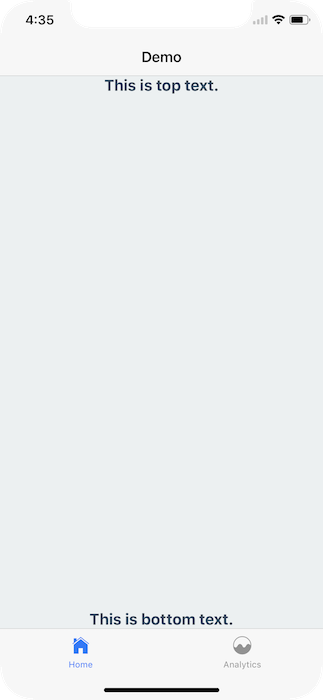
However, if you're overriding the default navigation bar, it's important to ensure your UI doesn't interfere with either of those hardware elements.
For example, if I render nothing for the `header` or `tabBarComponent`, nothing renders
```javascript
const Tabs = createBottomTabNavigator({
...
}, {
tabBarComponent: () => null,
});
export default createStackNavigator({
...
}, {
headerMode: 'none',
});
```
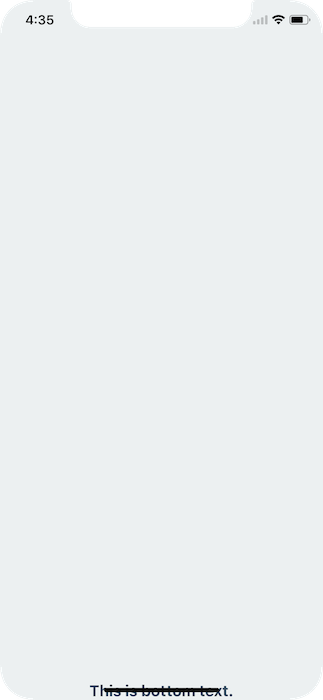
To fix this issue you can wrap your content in a `SafeAreaView`, which can be imported from `react-navigation`. Note that `SafeAreaView` should not wrap entire navigators, just the screen components or any content in them.
```javascript
import { SafeAreaView } from 'react-navigation';
class MyHomeScreen extends Component {
render() {
return (
This is top text.
This is bottom text.
);
}
}
```

This will detect if the app is running on an iPhoneX and, if so, ensure the content isn't hidden behind any hardware elements.
## Landscape Mode
Even if you're using the default navigation bar and tab bar if your application works in landscape mode it's important to ensure you content isn't hidden behind the sensor cluster.
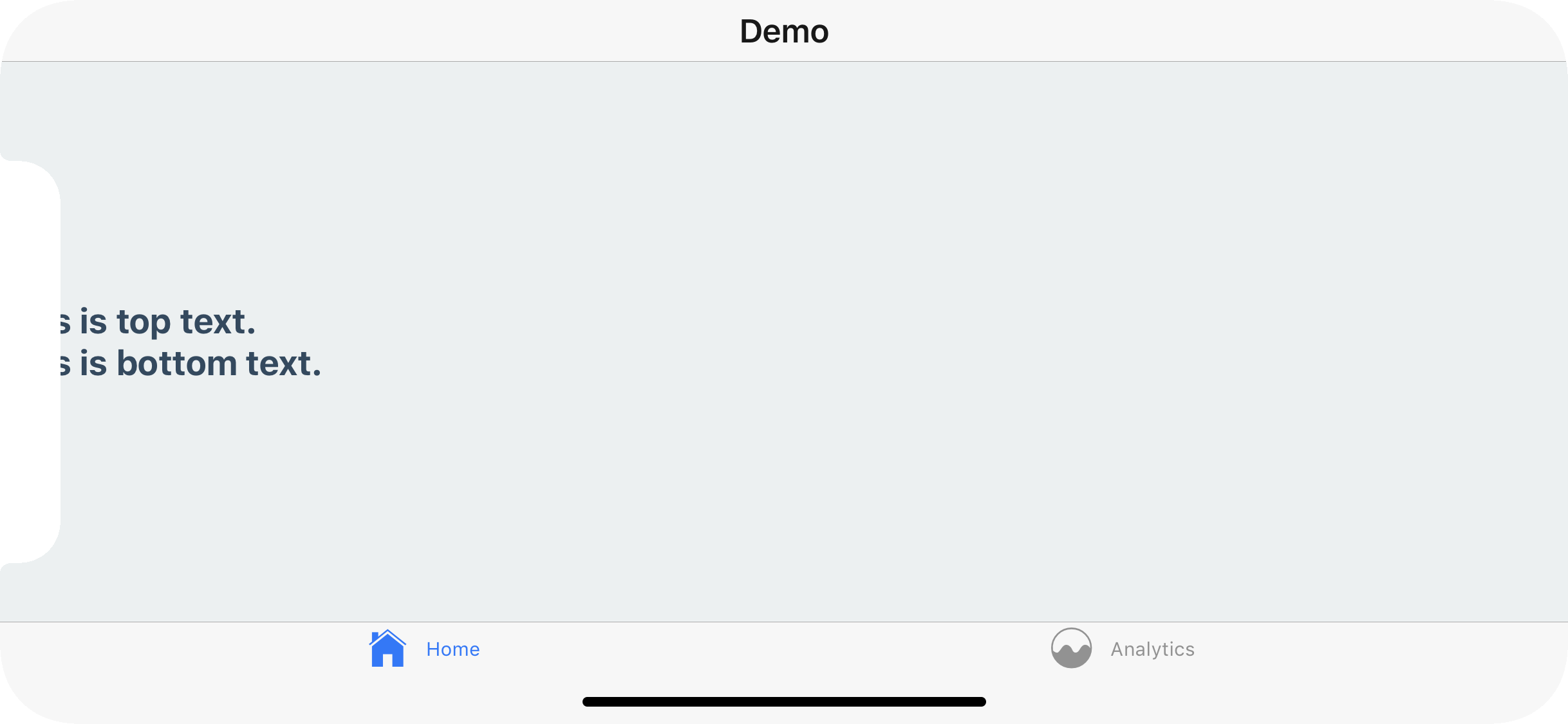
To fix this you can, once again, wrap your content in a `SafeAreaView`. This will not conflict with the navigation bar or tab bar's default behavior in portrait mode.

In conclusion, use the `SafeAreaView` component on the screens you register with a React Navigation navigator.
A [Snack](https://snack.expo.io/BJ6-M8pEG) is available with the code used in this overview.
## Use `forceInset` to get more control
In some cases you might need more control over which paddings are applied. For example, you can remove bottom padding by passing `forceInset` prop to `SafeAreaView`.
```javascript
This is top text.
This is bottom text.
```
`forceInset` takes an object with the keys `top | bottom | left | right | vertical | horizontal` and the values `'always' | 'never'`. Or you can override the padding altogether by passing an integer.
There is also a [Snack](https://snack.expo.io/@jozan/react-navigation-docs:-safeareaview-demo) available to demonstrate how `forceInset` behaves.
---
## Different status bar configuration based on route
Source: https://reactnavigation.org/docs/2.x/status-bar
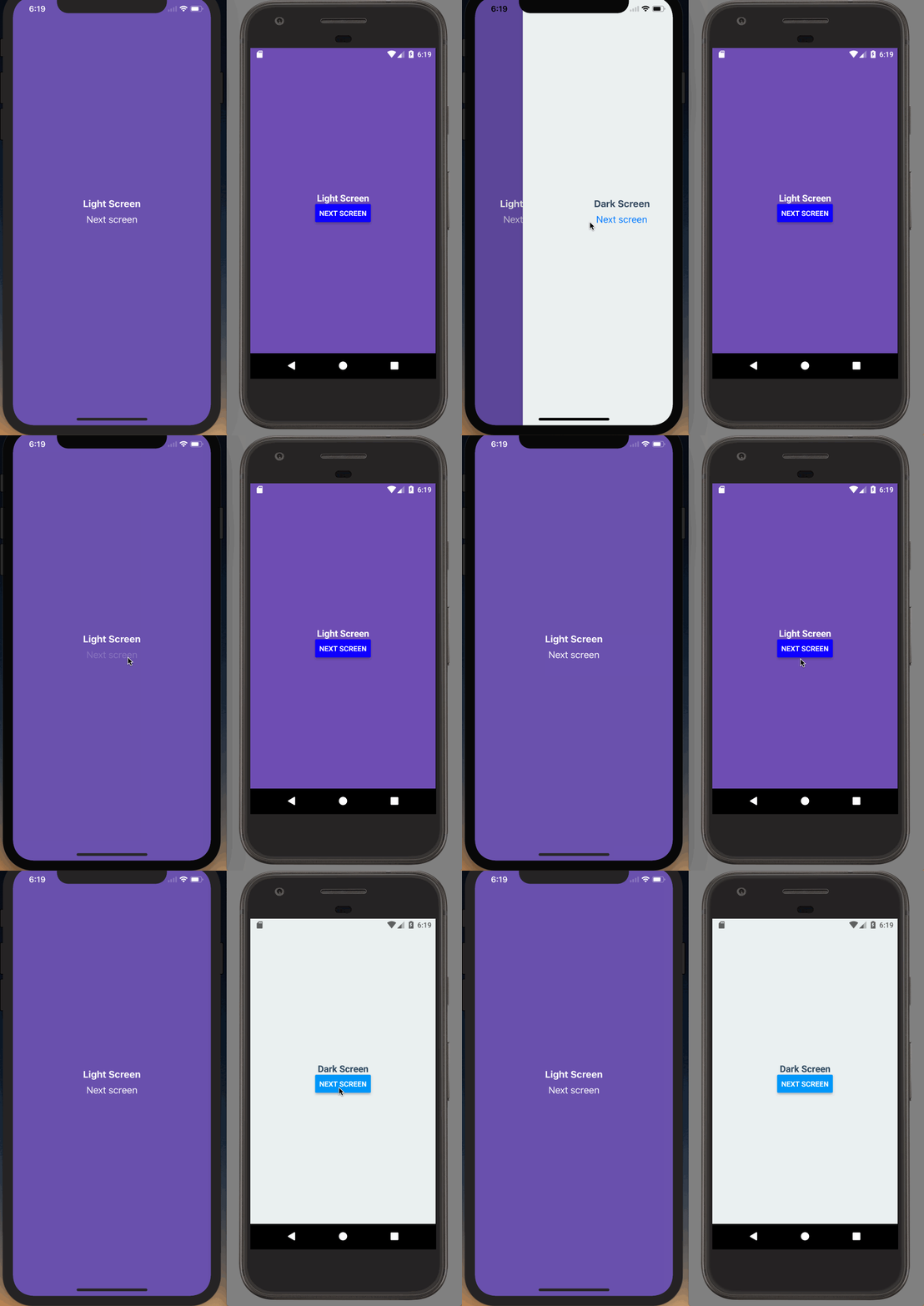
If you don't have a navigation header, or your navigation header changes color based on the route, you'll want to ensure that the correct color is used for the content.
## Stack and drawer navigators
This is a simple task when using a stack or drawer. You can simply render the `StatusBar` component, which is exposed by React Native, and set your config.
```javascript
class Screen1 extends React.Component {
render() {
return (
Light Screen
this.props.navigation.navigate('Screen2')}
color={isAndroid ? 'blue' : '#fff'}
/>
);
}
}
class Screen2 extends React.Component {
render() {
return (
Dark Screen
this.props.navigation.navigate('Screen1')}
/>
);
}
}
```
```javascript
export default createStackNavigator(
{
Screen1: {
screen: Screen1,
},
Screen2: {
screen: Screen2,
},
},
{
headerMode: 'none',
}
);
```
```javascript
export default createDrawerNavigator({
Screen1: {
screen: Screen1,
},
Screen2: {
screen: Screen2,
},
});
```
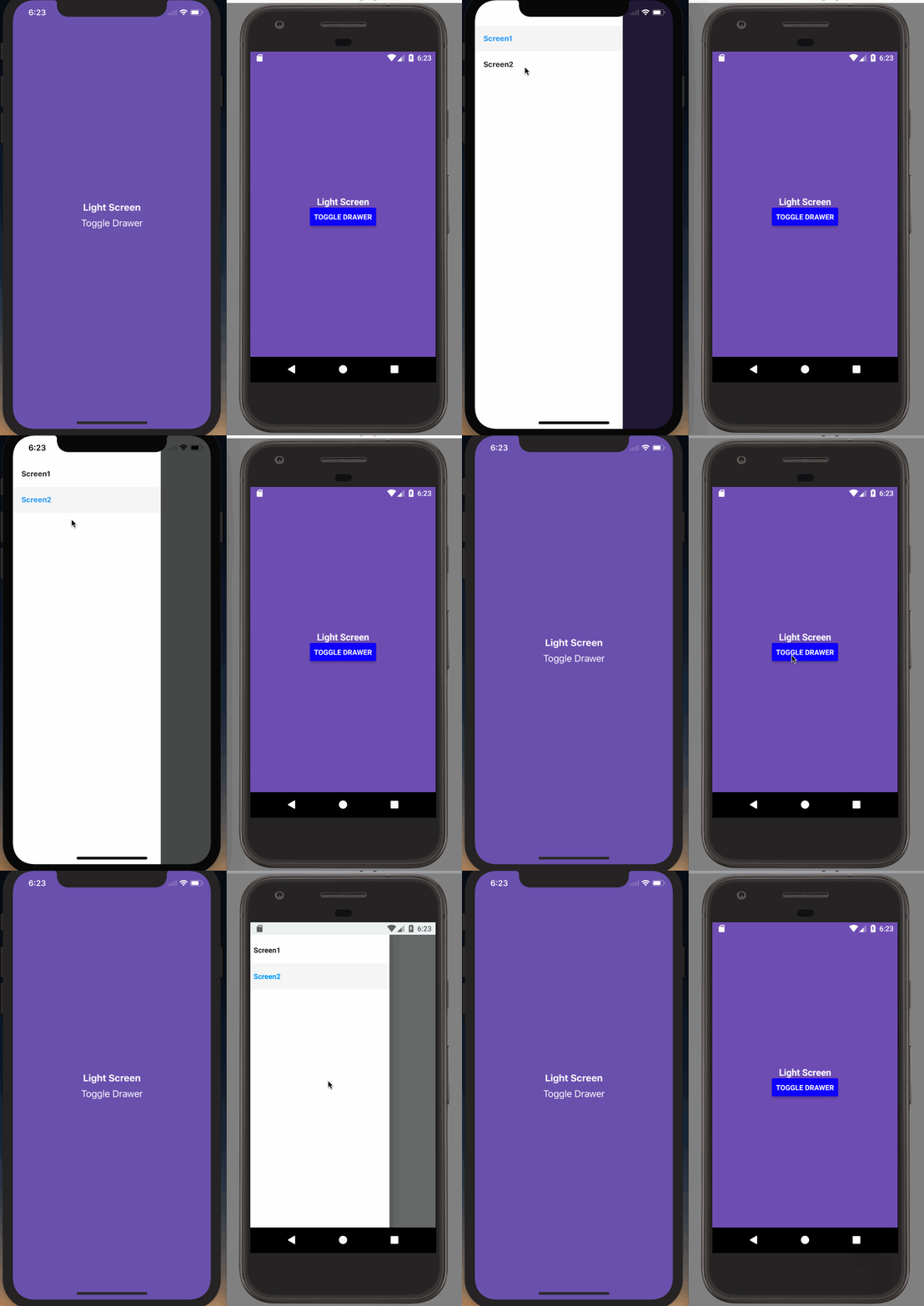
## TabNavigator
If you're using a TabNavigator it's a bit more complex because the screens on all of your tabs are rendered at once - that means that the last `StatusBar` config you set will be used (likely on the final tab of your tab navigator, not what the user is seeing).
To fix this we'll have to do two things
1. Only use the `StatusBar` component on our initial screen. This allows us to ensure the correct `StatusBar` config is used.
2. Leverage the events system in React Navigation and `StatusBar`'s implicit API to change the `StatusBar` configuration when a tab becomes active.
First, the new `Screen2.js` will no longer use the `StatusBar` component.
```javascript
class Screen2 extends React.Component {
render() {
return (
Dark Screen
this.props.navigation.navigate('Screen1')}
/>
{/* this.props.navigation.navigate('DrawerToggle')}
/> */}
);
}
}
```
Then, in both `Screen1.js` and `Screen2.js` we'll set up a listener to change the `StatusBar` configuration when that tab `didFocus`. We'll also make sure to remove the listener when the `TabNavigator` has been unmounted.
```javascript
class Screen1 extends React.Component {
componentDidMount() {
this._navListener = this.props.navigation.addListener('didFocus', () => {
StatusBar.setBarStyle('light-content');
isAndroid && StatusBar.setBackgroundColor('#6a51ae');
});
}
componentWillUnmount() {
this._navListener.remove();
}
...
}
class Screen2 extends React.Component {
componentDidMount() {
this._navListener = this.props.navigation.addListener('didFocus', () => {
StatusBar.setBarStyle('dark-content');
isAndroid && StatusBar.setBackgroundColor('#ecf0f1');
});
}
componentWillUnmount() {
this._navListener.remove();
}
...
}
```
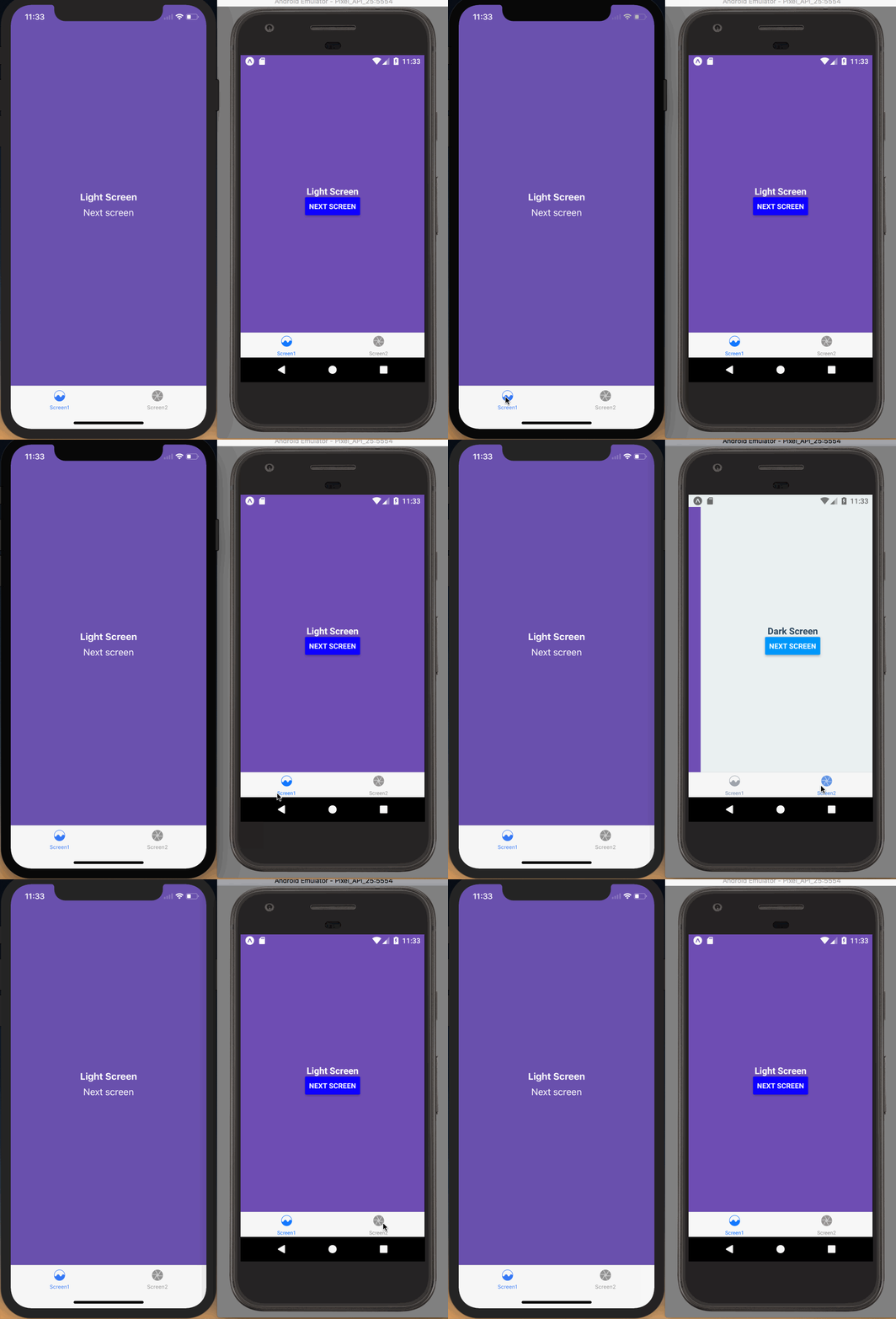
The code used for these demos is available as a [Snack](https://snack.expo.io/r1iuFP6Ez).
---
## Navigation options resolution
Source: https://reactnavigation.org/docs/2.x/navigation-options-resolution
Each screen can configure various aspects about how it gets presented in the navigator that renders it. In the [Configuring the header bar](headers.md) section of the fundamentals documentation we explain the basics of how this works.
In this document we'll explain how this works when there are multiple navigators. It's important to understand this so that you put your `navigationOptions` in the correct place and can properly configure your navigators. If you put them in the wrong place, at best nothing will happen and at worst something confusing and unexpected will happen. Thankfully, the logic for this could not be any easier to understand:
**You can only modify navigation options for a navigator from one of its screen components. This applies equally to navigators that are nested as screens.**
Let's take for example a tab navigator that contains a stack in each tab. What happens if we set the `navigationOptions` on a screen inside of the stack?
```js
class A extends React.Component {
static navigationOptions = {
tabBarLabel: 'Home!',
};
// etc..
}
class B extends React.Component {
static navigationOptions = {
tabBarLabel: 'Settings!',
};
// etc..
}
const HomeStack = createStackNavigator({ A });
const SettingsStack = createStackNavigator({ B });
export default createBottomTabNavigator({
HomeStack,
SettingsStack,
});
```
→ Run this code
As we mentioned earlier, you can only modify navigation options for a navigator from one of its screen components. `A` and `B` above are screen components in `HomeStack` and `SettingsStack` respectively, not in the tab navigator. So the result will be that the `tabBarLabel` property is not applied to the tab navigator. We can fix this though!
```js
const HomeStack = createStackNavigator({ A });
const SettingsStack = createStackNavigator({ B });
HomeStack.navigationOptions = {
tabBarLabel: 'Home!',
};
SettingsStack.navigationOptions = {
tabBarLabel: 'Settings!',
};
export default createBottomTabNavigator({
HomeStack,
SettingsStack,
});
```
→ Run this code
To understand what is going on here, first recall that in the following example, `MyComponent` and `MyOtherComponent` are identical:
```js
class MyComponent extends React.Component {
static navigationOptions = {
title: 'Hello!',
};
// etc.
}
class MyOtherComponent extends React.Component {
// etc.
}
MyOtherComponent.navigationOptions = {
title: 'Hello!',
};
```
We also know that `createStackNavigator` and related functions return React components. So when we set the `navigationOptions` directly on the `HomeStack` and `SettingsStack` component, it allows us to control the `navigationOptions` for its parent navigator when its used as a screen component. In this case, the `navigationOptions` on our stack components configure the label in the tab navigator that renders the stacks.
## **Caution**: the navigationOptions property vs configuration
Navigators are initialized with `create*Navigator(routeConfig, navigatorConfig)`. Inside of `navigatorConfig` we can add a `navigationOptions` property. These `navigationOptions` are the default options for screens within that navigator ([read more about sharing common navigationOptions](headers.md#sharing-common-navigationoptions-across-screens)), they do not refer to the `navigationOptions` for that navigator — as we have seen above, we set the `navigationOptions` property directly on the navigator for that use case.
```js
const HomeStack = createStackNavigator(
{ A },
{
// This is the default for screens in the stack, so `A` will
// use this title unless it overrides it
navigationOptions: {
title: 'Welcome',
},
}
);
// These are the options that are used by the navigator that renders
// the HomeStack, in our example above this is a tab navigator.
HomeStack.navigationOptions = {
tabBarLabel: 'Home!',
};
```
We understand that overloading the naming here is a little bit confusing. Please [open a RFC](https://github.com/react-navigation/rfcs) if you have a suggestion about how we can make this API easier to learn and work with.
## A stack contains a tab navigator and you want to set the title on the stack header
Imagine the following configuration:
```js
const TabNavigator = createBottomTabNavigator({
Feed: FeedScreen,
Profile: ProfileScreen,
});
const AppNavigator = createStackNavigator({
Home: TabNavigator,
Settings: SettingsScreen,
});
```
If we were to set the `headerTitle` with `navigationOptions` on the `FeedScreen`, this would not work. This is because the `AppNavigator` stack will only look at its immediate children for configuration: `TabNavigator` and `SettingsScreen`. So we can set the `headerTitle` on the `TabNavigator` instead, like so:
```js
const TabNavigator = createBottomTabNavigator({
Feed: FeedScreen,
Profile: ProfileScreen,
});
TabNavigator.navigationOptions = ({ navigation }) => {
const { routeName } = navigation.state.routes[navigation.state.index];
// You can do whatever you like here to pick the title based on the route name
const headerTitle = routeName;
return {
headerTitle,
};
};
```
Another option is to re-organize your navigators, such that each tab has its own stack. You can then hide the top-level stack's header when the tab screen is focused.
```js
const FeedStack = createStackNavigator({
FeedHome: FeedScreen,
/* other routes here */
});
const ProfileStack = createStackNavigator({
ProfileHome: ProfileScreen,
/* other routes here */
});
const TabNavigator = createBottomTabNavigator({
Feed: FeedStack,
Profile: ProfileStack,
});
TabNavigator.navigationOptions = {
// Hide the header from AppNavigator stack
header: null,
};
const AppNavigator = createStackNavigator({
Home: TabNavigator,
Settings: SettingsScreen,
});
```
Using this configuration, the `headerTitle` or `title` from `navigationOptions` on `FeedScreen` and `ProfileScreen` will not determine the title in their headers.
Additionally, you can push new screens to the feed and profile stacks without hiding the tab bar by adding more routes to those stacks. If you want to push screens on top of the tab bar, then you can add them to the `AppNavigator` stack.
## A tab navigator contains a stack and you want to hide the tab bar on specific screens
Similar to the example above where a stack contains a tab navigator, we can solve this in two ways: add `navigationOptions` to our tab navigator to set the tab bar to hidden depending on which route is active in the child stack, or we can move the tab navigator inside of the stack.
Imagine the following configuration:
```js
const FeedStack = createStackNavigator({
FeedHome: FeedScreen,
Details: DetailsScreen,
});
const TabNavigator = createBottomTabNavigator({
Feed: FeedStack,
Profile: ProfileScreen,
});
const AppNavigator = createSwitchNavigator({
Auth: AuthScreen,
Home: TabNavigator,
});
```
If we want to hide the tab bar when we navigate from the feed home to a details screen without shuffling navigators, we cannot set the `tabBarVisible: false` configuration in `navigationOptions` on `DetailsScreen`, because those options will only apply to the `FeedStack`. Instead, we can do the following:
```js
const FeedStack = createStackNavigator({
FeedHome: FeedScreen,
Details: DetailsScreen,
});
FeedStack.navigationOptions = ({ navigation }) => {
let tabBarVisible = true;
if (navigation.state.index > 0) {
tabBarVisible = false;
}
return {
tabBarVisible,
};
};
```
This will hide the tab bar any time we navigate away from the feed home. We could switch visibility based on route name, but it would be strange to have the tab bar be hidden and then appear again when pushing another route — it should only be visible when returning to a route where it was previously visible.
Another option here would be to add another stack navigator as a parent of the tab navigator, and put the details screen there. This is recommended.
```js
const FeedStack = createStackNavigator({
FeedHome: FeedScreen,
/* any other route you want to render under the tab bar */
});
const TabNavigator = createBottomTabNavigator({
Feed: FeedStack,
Profile: ProfileScreen,
});
const HomeStack = createStackNavigator({
Tabs: TabNavigator,
Details: DetailsScreen,
/* any other route you want to render above the tab bar */
});
const AppNavigator = createSwitchNavigator({
Auth: AuthScreen,
Home: HomeStack,
});
```
## A drawer has a stack inside of it and you want to lock the drawer on certain screens
This is conceptually identical to having a tab with a stack inside of it (read that above if you have not already), where you want to hide the tab bar on certain screens. The only difference is that rather than using `tabBarVisible` you will use `drawerLockMode`.
Imagine the following configuration:
```js
const FeedStack = createStackNavigator({
FeedHome: FeedScreen,
Details: DetailsScreen,
});
const DrawerNavigator = createDrawerNavigator({
Feed: FeedStack,
Profile: ProfileScreen,
});
const AppNavigator = createSwitchNavigator({
Auth: AuthScreen,
Home: DrawerNavigator,
});
```
In order to hide the drawer when we push the details screen to the feed stack, we need to set `navigationOptions` on the `FeedStack`. If we were to set `navigationOptions` on the `DetailsScreen`, they would be configuring the feed stack (its direct parent) and not the drawer.
```js
const FeedStack = createStackNavigator({
FeedHome: FeedScreen,
Details: DetailsScreen,
});
FeedStack.navigationOptions = ({ navigation }) => {
let drawerLockMode = 'unlocked';
if (navigation.state.index > 0) {
drawerLockMode = 'locked-closed';
}
return {
drawerLockMode,
};
};
```
Another option here would be to add another stack navigator as a parent of the drawer navigator, and put the details screen there. This is recommended.
```js
const FeedStack = createStackNavigator({
FeedHome: FeedScreen,
/* any other route where you want the drawer to remain available */
/* keep in mind that it will conflict with the swipe back gesture on ios */
});
const DrawerNavigator = createDrawerNavigator({
Feed: FeedStack,
Profile: ProfileScreen,
});
const HomeStack = createStackNavigator({
Drawer: DrawerNavigator,
Details: DetailsScreen,
/* add routes here where you want the drawer to be locked */
});
const AppNavigator = createSwitchNavigator({
Auth: AuthScreen,
Home: HomeStack,
});
```
---
## Custom Android back button behavior
Source: https://reactnavigation.org/docs/2.x/custom-android-back-button-handling
By default, when user presses the Android hardware back button, react-navigation will pop a screen or exit the app if there are no screens to pop. This is a sensible default behavior, but there are situations when you might want to implement custom handling.
> If you're looking for an easy-to-use solution, you can check out a community-developed package [react-navigation-backhandler](https://github.com/vonovak/react-navigation-backhandler). The following text shows what the package does under the cover.
As an example, consider a screen where user is selecting items in a list, and a "selection mode" is active. On a back button press, you would first want the "selection mode" to be deactivated, and the screen should be popped only on the second back button press. The following code snippet demonstrates the situation. We make use of [`BackHandler`](https://reactnative.dev/docs/backhandler.html) which comes with react-native and we [subscribe to navigation lifecycle updates](navigation-prop.md#addlistener---subscribe-to-updates-to-navigation-lifecycle) to add our custom `hardwareBackPress` listener.
Returning `true` from `onBackButtonPressAndroid` denotes that we have handled the event, and react-navigation's listener will not get called, thus not popping the screen. Returning `false` will cause the event to bubble up and react-navigation's listener will pop the screen.
```
import React from "react";
import { BackHandler } from "react-native";
class ScreenWithCustomBackBehavior extends React.Component {
_didFocusSubscription;
_willBlurSubscription;
constructor(props) {
super(props);
this._didFocusSubscription = props.navigation.addListener('didFocus', payload =>
BackHandler.addEventListener('hardwareBackPress', this.onBackButtonPressAndroid)
);
}
componentDidMount() {
this._willBlurSubscription = this.props.navigation.addListener('willBlur', payload =>
BackHandler.removeEventListener('hardwareBackPress', this.onBackButtonPressAndroid)
);
}
onBackButtonPressAndroid = () => {
if (this.isSelectionModeEnabled()) {
this.disableSelectionMode();
return true;
} else {
return false;
}
};
componentWillUnmount() {
this._didFocusSubscription && this._didFocusSubscription.remove();
this._willBlurSubscription && this._willBlurSubscription.remove();
}
render() {
// ...
}
}
```
The presented approach will work well for screens that are shown in a `StackNavigator`. Custom back button handling in other situations may not be supported at the moment (eg. A known case when this does not work is when you want to handle back button press in an open drawer. PRs for such use cases are welcome!).
### Why not use component lifecycle methods?
At first, you may be inclined to use `componentDidMount` to subscribe for the back press event and `componentWillUnmount` to unsubscribe. This approach will not work - learn more about this in [navigation lifecycle](navigation-lifecycle.md).
---
## Access the navigation prop from any component
Source: https://reactnavigation.org/docs/2.x/connecting-navigation-prop
[`withNavigation`](with-navigation.md) is a higher order component which passes the `navigation` prop into a wrapped Component. It's useful when you cannot pass the `navigation` prop into the component directly, or don't want to pass it in case of a deeply nested child.
```javascript
import React from 'react';
import { Button } from 'react-native';
export default class MyBackButton extends React.Component {
render() {
// This will throw an 'undefined is not a function' exception because the navigation
// prop is undefined.
return (
{
this.props.navigation.goBack();
}}
/>
);
}
}
```
To resolve this exception, you could pass the `navigation` prop in to `MyBackButton` when you render it from a screen, like so: ` {
this.props.navigation.goBack();
}}
/>
);
}
}
// withNavigation returns a component that wraps MyBackButton and passes in the
// navigation prop
export default withNavigation(MyBackButton);
```
Using this approach, you can render `MyBackButton` anywhere in your app without passing in a `navigation` prop explicitly and it will work as expected.
---
## Navigating without the navigation prop
Source: https://reactnavigation.org/docs/2.x/navigating-without-navigation-prop
Calling functions such as `navigate` or `popToTop` on the `navigation` prop is not the only way to navigate around your app. As an alternative, you can dispatch navigation actions on your top-level navigator, provided you aren't passing your own `navigation` prop as you would with a redux integration. The presented approach is useful in situations when you want to trigger a navigation action from places where you do not have access to the `navigation` prop, or if you're looking for an alternative to using the `navigation` prop.
You can get access to a navigator through a `ref` and pass it to the `NavigationService` which we will later use to navigate. Use this only with the top-level (root) navigator of your app.
```javascript
// App.js
import NavigationService from './NavigationService';
const TopLevelNavigator = createStackNavigator({
/* ... */
});
class App extends React.Component {
// ...
render() {
return (
{
NavigationService.setTopLevelNavigator(navigatorRef);
}}
/>
);
}
}
```
In the next step, we define `NavigationService` which is a simple module with functions that dispatch user-defined navigation actions.
```javascript
// NavigationService.js
import { NavigationActions } from 'react-navigation';
let _navigator;
function setTopLevelNavigator(navigatorRef) {
_navigator = navigatorRef;
}
function navigate(routeName, params) {
_navigator.dispatch(
NavigationActions.navigate({
routeName,
params,
})
);
}
// add other navigation functions that you need and export them
export default {
navigate,
setTopLevelNavigator,
};
```
Then, in any of your javascript modules, just import the `NavigationService` and call functions which you exported from it. You may use this approach outside of your React components and, in fact, it works just as well when used from within them.
```javascript
// any js module
import NavigationService from 'path-to-NavigationService.js';
// ...
NavigationService.navigate('ChatScreen', { userName: 'Lucy' });
```
In `NavigationService`, you can create your own navigation actions, or compose multiple navigation actions into one, and then easily reuse them throughout your application. When writing tests, you may mock the navigation functions, and make assertions on whether the correct functions are called, with the correct parameters.
---
## Using the navigation key
Source: https://reactnavigation.org/docs/2.x/navigation-key
The `key` parameter comes up repeatedly across different navigation functions. Let's take a look at a summary of its use cases:
### Usage with the [`navigate`](navigation-actions.md#navigate) call
If no key is provided, `StackRouter` will behave as follows:
- if a route with the given name already exists in the state, `StackRouter` will jump to the existing route, along with setting the new parameters.
- if no such route exists, `StackRouter` will push it onto the stack
If, however, you want to push several instances of the same route, you can do so by providing a unique `key` parameter each time you call `navigate`, or you can use the `push` action available on `StackRouter`. See the related [RFC](https://github.com/react-navigation/rfcs/blob/master/text/0004-less-pushy-navigate.md) for more background.
> Note: the behavior of `navigate` without a `key` is significantly different in the 1.x series of releases. Read more about it [here](https://gist.github.com/vonovak/ef72f5efe1d36742de8968ff6a708985).
### Usage with [`reset`](stack-actions.md#reset)
When resetting, `key` is also optional and can be a string or `null`. If set, the navigator with the given key will reset. If `null`, the root navigator will reset. You can obtain a route's navigator key by calling `this.props.navigation.dangerouslyGetParent().state.key`. Reason why the function is called `dangerouslyGetParent` is to warn developers against overusing it to eg. get parent of parent and other hard-to-follow patterns.
### Usage with [`replace`](stack-actions.md#replace)
With the `replace` navigation action, `key` is a required parameter used for identifying the route to be replaced. If you use the helper function `this.props.navigation.replace`, we will automatically substitute the key of the current route.
### Usage with `goBack`
Please refer to the [`goBack docs`](navigation-prop.md#goback---close-the-active-screen-and-move-back) for a detailed explanation.
---
## Deep linking
Source: https://reactnavigation.org/docs/2.x/deep-linking
In this guide we will set up our app to handle external URIs. Let's suppose that we want a URI like `example://chat/Eric` to open our app and link straight into a chat screen for some user named "Eric".
## Configuration
Previously, we had defined a navigator like this:
```js
const SimpleApp = createStackNavigator({
Home: { screen: HomeScreen },
Chat: { screen: ChatScreen },
});
```
We want paths like `chat/Eric` to link to a "Chat" screen with the `user` passed as a param. Let's re-configure our chat screen with a `path` that tells the router what relative path to match against, and what params to extract. This path spec would be `chat/:user`.
```js
const SimpleApp = createStackNavigator({
Home: { screen: HomeScreen },
Chat: {
screen: ChatScreen,
path: 'chat/:user',
},
});
```
## Set up with Expo projects
You need to specify a scheme for your app. You can register for a scheme in your `app.json` by adding a string under the scheme key:
```json
{
"expo": {
"scheme": "example"
}
}
```
### URI Prefix
Next, let's configure our navigation container to extract the path from the app's incoming URI.
```js
const SimpleApp = createStackNavigator({...});
const prefix = Expo.Linking.makeUrl('/');
const MainApp = () =>
// Add this above the `@end`:
- (BOOL)application:(UIApplication *)application openURL:(NSURL *)url
sourceApplication:(NSString *)sourceApplication annotation:(id)annotation
{
return [RCTLinkingManager application:application openURL:url
sourceApplication:sourceApplication annotation:annotation];
}
```
In Xcode, open the project at `SimpleApp/ios/SimpleApp.xcodeproj`. Select the project in sidebar and navigate to the info tab. Scroll down to "URL Types" and add one. In the new URL type, set the identifier and the URL scheme to your desired URL scheme.

Now you can press play in Xcode, or re-build on the command line:
```bash
react-native run-ios
```
To test the URI on the simulator, run the following:
```
xcrun simctl openurl booted example://chat/Eric
```
To test the URI on a real device, open Safari and type `example://chat/Eric`.
### Android
To configure the external linking in Android, you can create a new intent in the manifest.
In `SimpleApp/android/app/src/main/AndroidManifest.xml`, do these followings adjustments:
1. Set `launchMode` of `MainActivity` to `singleTask` in order to receive intent on existing `MainActivity`. It is useful if you want to perform navigation using deep link you have been registered - [details](http://developer.android.com/training/app-indexing/deep-linking.html#adding-filters)
2. Add the new `intent-filter` inside the `MainActivity` entry with a `VIEW` type action:
```
```
Now, re-install the app:
```bash
react-native run-android
```
To test the intent handling in Android, run the following:
```
adb shell am start -W -a android.intent.action.VIEW -d "example://chat/Eric" com.simpleapp
```
## Disable deep linking
In case you want to handle routing with deep-linking by yourself instead of `react-navigation`, you can pass `enableURLHandling={false}` prop to your top level navigator:
```js
const SimpleApp = createStackNavigator({...});
const MainApp = () => {
const currentScreen = getActiveRouteName(currentState);
const prevScreen = getActiveRouteName(prevState);
if (prevScreen !== currentScreen) {
// the line below uses the Google Analytics tracker
// change the tracker here to use other Mobile analytics SDK.
tracker.trackScreenView(currentScreen);
}
}}
/>
);
```
## Screen tracking with Redux
When using Redux, we can write a Redux middleware to track the screen. For this purpose,
we will reuse `getActiveRouteName` from the previous section.
```js
import { NavigationActions } from 'react-navigation';
import { GoogleAnalyticsTracker } from 'react-native-google-analytics-bridge';
const tracker = new GoogleAnalyticsTracker(GA_TRACKING_ID);
const screenTracking =
({ getState }) =>
(next) =>
(action) => {
if (
action.type !== NavigationActions.NAVIGATE &&
action.type !== NavigationActions.BACK
) {
return next(action);
}
const currentScreen = getActiveRouteName(getState().navigation);
const result = next(action);
const nextScreen = getActiveRouteName(getState().navigation);
if (nextScreen !== currentScreen) {
// the line below uses the Google Analytics tracker
// change the tracker here to use other Mobile analytics SDK.
tracker.trackScreenView(nextScreen);
}
return result;
};
export default screenTracking;
```
### Create Redux store and apply the above middleware
The `screenTracking` middleware can be applied to the store during its creation. See [Redux Integration](redux-integration.md) for details.
```js
const store = createStore(
combineReducers({
navigation: navigationReducer,
...
}),
applyMiddleware(
screenTracking,
...
),
);
```
---
## State persistence
Source: https://reactnavigation.org/docs/2.x/state-persistence
You may want to save the user's location in the app, so that they are immediately returned to the same location after the app is restarted.
This is especially valuable during development because it allows the developer to stay on the same screen when they refresh the app.
> Note: This feature is currently considered experimental, because of the warnings listed at the end of this page. Use with caution!
## Usage
You can enable persistence for your top-level navigator by rendering it with a `persistenceKey`:
```js
const AppNavigator = createStackNavigator({...});
const App = () => {
this.navigator = nav;
}}
/>
);
}
}
```
## App Containers on the web
On the web, you can use `createBrowserApp` and `handleServerRequest` to maintain the state for your top-level navigator.
---
## Redux integration
Source: https://reactnavigation.org/docs/2.x/redux-integration
**Warning: in the next major version of React Navigation, to be released in Fall 2018, we will no longer provide any information about how to integrate with Redux and it may cease to work**. Issues related to Redux that are posted on the React Navigation issue tracker will be immediately closed. Redux integration may continue to work but it will not be tested against or considered when making any design decisions for the library.
Some folks like to have their navigation state stored in the same place as the rest of their application state. _Think twice before you consider doing this, there is an incredibly good chance that you do not need to do this!_. Storing your React Navigation state in your own Redux store is likely to give you a very difficult time if you don't know what you're doing.
If your only reason for doing this is that you want to be able to perform navigation actions from outside of your components (eg: from a Redux middleware), you can learn more about this in [navigating without the navigation prop](navigating-without-navigation-prop.md).
## Overview
1. To handle your app's navigation state in Redux, you can pass your own [`navigation`](navigation-prop.md) prop to a navigator. `react-navigation-redux-helpers` handles this for you behind the scenes with a "higher-order component" called `reduxifyNavigator`. You pass in your root navigator component to the `reduxifyNavigator` function, and it returns a new component that takes your navigation `state` and `dispatch` function as props.
2. A middleware is needed so that any events that mutate the navigation state properly trigger React Navigation's event listeners.
3. The navigation state inside Redux will need to be kept updated using React Navigation's navigation reducer. You will call this reducer from your Redux master reducer.
## Step-by-step guide
The following steps apply to `react-navigation@^2.3.0` and `react-navigation-redux-helpers@^2.0.0-beta`.
First, you need to add the `react-navigation-redux-helpers` package to your project.
```bash npm2yarn
npm install react-navigation-redux-helpers
```
The following is a minimal example of how you might use navigators within a Redux application:
```es6
import {
createStackNavigator,
} from 'react-navigation';
import {
createStore,
applyMiddleware,
combineReducers,
} from 'redux';
import {
reduxifyNavigator,
createReactNavigationReduxMiddleware,
createNavigationReducer,
} from 'react-navigation-redux-helpers';
import { Provider, connect } from 'react-redux';
import React from 'react';
const AppNavigator = createStackNavigator(AppRouteConfigs);
const navReducer = createNavigationReducer(AppNavigator);
const appReducer = combineReducers({
nav: navReducer,
...
});
// Note: createReactNavigationReduxMiddleware must be run before reduxifyNavigator
const middleware = createReactNavigationReduxMiddleware(
"root",
state => state.nav,
);
const App = reduxifyNavigator(AppNavigator, "root");
const mapStateToProps = (state) => ({
state: state.nav,
});
const AppWithNavigationState = connect(mapStateToProps)(App);
const store = createStore(
appReducer,
applyMiddleware(middleware),
);
class Root extends React.Component {
render() {
return (
);
}
}
```
Once you do this, your navigation state is stored within your Redux store, at which point you can fire navigation actions using your Redux dispatch function.
Keep in mind that when a navigator is given a `navigation` prop, it relinquishes control of its internal state. That means you are now responsible for persisting its state, handling any deep linking, [Handling the Hardware Back Button in Android](#handling-the-hardware-back-button-in-android), etc.
Navigation state is automatically passed down from one navigator to another when you nest them. Note that in order for a child navigator to receive the state from a parent navigator, it should be defined as a `screen`.
Applying this to the example above, you could instead define `AppNavigator` to contain a nested `TabNavigator` as follows:
```es6
const AppNavigator = createStackNavigator({
Home: { screen: MyTabNavigator },
});
```
In this case, once you `connect` `AppNavigator` to Redux as is done in `AppWithNavigationState`, `MyTabNavigator` will automatically have access to navigation state as a `navigation` prop.
## Full example
There's a working example app with Redux [here](https://github.com/react-navigation/react-navigation/tree/2.x/examples/ReduxExample) if you want to try it out yourself.
## Mocking tests
To make jest tests work with your React Navigation app, you need to change the jest preset in the `package.json`, see [here](https://facebook.github.io/jest/docs/tutorial-react-native.html#transformignorepatterns-customization):
```json
"jest": {
"preset": "react-native",
"transformIgnorePatterns": [
"node_modules/(?!(jest-)?react-native|react-navigation|react-navigation-redux-helpers)"
]
}
```
## Under the hood
### Creating your own navigation reducer
If you want to replace `createNavigationReducer` reducer creator this is how you would do it yourself:
```es6
const AppNavigator = createStackNavigator(AppRouteConfigs);
const initialState = AppNavigator.router.getStateForAction(
AppNavigator.router.getActionForPathAndParams('Login')
);
const navReducer = (state = initialState, action) => {
const nextState = AppNavigator.router.getStateForAction(action, state);
// Simply return the original `state` if `nextState` is null or undefined.
return nextState || state;
};
```
## Handling the Hardware Back Button in Android
By using the following snippet, your nav component will be aware of the back button press actions and will correctly interact with your stack. This is really useful on Android.
```es6
import React from 'react';
import { BackHandler } from 'react-native';
import { NavigationActions } from 'react-navigation';
/* your other setup code here! this is not a runnable snippet */
class ReduxNavigation extends React.Component {
componentDidMount() {
BackHandler.addEventListener('hardwareBackPress', this.onBackPress);
}
componentWillUnmount() {
BackHandler.removeEventListener('hardwareBackPress', this.onBackPress);
}
onBackPress = () => {
const { dispatch, nav } = this.props;
if (nav.index === 0) {
return false;
}
dispatch(NavigationActions.back());
return true;
};
render() {
/* more setup code here! this is not a runnable snippet */
return {
this.navigator = nav;
}}
/>
);
}
}
```
Please notice that this solution should only be used on the top level navigator.
## Navigation Containers
The built in navigators can automatically behave like top-level navigators when the navigation prop is missing. This functionality provides a transparent navigation container, which is where the top-level navigation prop comes from.
When rendering one of the included navigators, the navigation prop is optional. When it is missing, the container steps in and manages its own navigation state. It also handles URLs, external linking, and Android back button integration.
For the purpose of convenience, the built-in navigators have this ability because behind the scenes they use `createNavigationContainer`. Usually, navigators require a navigation prop in order to function.
Top-level navigators accept the following props:
### `onNavigationStateChange(prevState, newState, action)`
Function that gets called every time navigation state managed by the navigator changes. It receives the previous state, the new state of the navigation and the action that issued state change. By default it prints state changes to the console.
### `uriPrefix`
The prefix of the URIs that the app might handle. This will be used when handling a [deep link](deep-linking.md) to extract the path passed to the router.
---
## Routers
Source: https://reactnavigation.org/docs/2.x/routers
Routers define a component's navigation state, and they allow the developer to define paths and actions that can be handled.
## Built-In Routers
`react-navigation` ships with a few standard routers:
- [StackRouter](https://github.com/react-navigation/react-navigation/blob/2.x/src/routers/StackRouter.js)
- [TabRouter](https://github.com/react-navigation/react-navigation/blob/2.x/src/routers/TabRouter.js)
## Using Routers
To make a navigator manually, put a static `router` on a component.
```js
class MyNavigator extends React.Component {
static router = StackRouter(routes, config);
...
}
```
Now you can use this component as a `screen` in another navigator, and the navigation logic for `MyNavigator` will be defined by this `StackRouter`.
## Customizing Routers
See the [Custom Router API spec](custom-routers.md) to learn about the API of `StackRouter` and `TabRouter`. You can override the router functions as you see fit:
### Custom Navigation Actions
To override navigation behavior, you can override the navigation state logic in `getStateForAction`, and manually manipulate the `routes` and `index`.
```js
const MyApp = createStackNavigator(
{
Home: { screen: HomeScreen },
Profile: { screen: ProfileScreen },
},
{
initialRouteName: 'Home',
}
);
const defaultGetStateForAction = MyApp.router.getStateForAction;
MyApp.router.getStateForAction = (action, state) => {
if (state && action.type === 'PushTwoProfiles') {
const routes = [
...state.routes,
{ key: 'A', routeName: 'Profile', params: { name: action.name1 } },
{ key: 'B', routeName: 'Profile', params: { name: action.name2 } },
];
return {
...state,
routes,
index: routes.length - 1,
};
}
return defaultGetStateForAction(action, state);
};
```
### Blocking Navigation Actions
Sometimes you may want to prevent some navigation activity, depending on your route.
```js
import { NavigationActions } from 'react-navigation';
const MyStackRouter = StackRouter(
{
Home: { screen: HomeScreen },
Profile: { screen: ProfileScreen },
},
{
initialRouteName: 'Home',
}
);
const defaultGetStateForAction = MyStackRouter.router.getStateForAction;
MyStackRouter.router.getStateForAction = (action, state) => {
if (
state &&
action.type === NavigationActions.BACK &&
state.routes[state.index].params.isEditing
) {
// Returning null from getStateForAction means that the action
// has been handled/blocked, but there is not a new state
return null;
}
return defaultGetStateForAction(action, state);
};
```
### Handling Custom URIs
Perhaps your app has a unique URI which the built-in routers cannot handle. You can always extend the router `getActionForPathAndParams`.
```js
import { NavigationActions } from 'react-navigation';
const MyApp = createStackNavigator(
{
Home: { screen: HomeScreen },
Profile: { screen: ProfileScreen },
},
{
initialRouteName: 'Home',
}
);
const previousGetActionForPathAndParams =
MyApp.router.getActionForPathAndParams;
Object.assign(MyApp.router, {
getActionForPathAndParams(path, params) {
if (path === 'my/custom/path' && params.magic === 'yes') {
// returns a profile navigate action for /my/custom/path?magic=yes
return NavigationActions.navigate({
routeName: 'Profile',
action: NavigationActions.navigate({
// This child action will get passed to the child router
// ProfileScreen.router.getStateForAction to get the child
// navigation state.
routeName: 'Friends',
}),
});
}
return previousGetActionForPathAndParams(path, params);
},
});
```
---
## Custom navigators
Source: https://reactnavigation.org/docs/2.x/custom-navigators
A navigator is any React component that has a [router](https://github.com/react-navigation/react-navigation/blob/2.x/src/routers/StackRouter.js) on it, to define the navigation behavior. Each navigator is given a `navigation` prop, which allows the parent to control the navigation state.
## Extending Navigators
It is possible to take an existing Navigator and extend its behavior, using the following approach:
```js
const MyStack = createStackNavigator({ ... });
class CustomNavigator extends React.Component {
static router = MyStack.router;
render() {
const { navigation } = this.props;
return
);
}
}
```
## Navigator Navigation Prop
The navigation prop passed down to a navigator only includes `state`, `dispatch`, and `addListener`. This is the current state of the navigator, and an event channel to send action requests.
All navigators are controlled components: they always display what is coming in through `props.navigation.state`, and their only way to change the state is to send actions into `props.navigation.dispatch`.
Navigators can specify custom behavior to parent navigators by [customizing their router](custom-routers.md). For example, a navigator is able to specify when actions should be blocked by returning null from `router.getStateForAction`. Or a navigator can specify custom URI handling by overriding `router.getActionForPathAndParams` to output a relevant navigation action, and handling that action in `router.getStateForAction`.
### Navigation State
The navigation state that is passed into a navigator's `props.navigation.state` has the following structure:
```
{
index: 1, // identifies which route in the routes array is active
routes: [
{
// Each route needs a name, which routers will use to associate each route
// with a react component
routeName: 'MyRouteName',
// A unique id for this route, used to keep order in the routes array:
key: 'myroute-123',
// Routes can have any additional data. The included routers have `params`
...customRouteData,
},
...moreRoutes,
]
}
```
### Navigation Dispatchers
A navigator can dispatch navigation actions, such as 'Go to a URI', 'Go back'.
The dispatcher will return `true` if the action was successfully handled, otherwise `false`.
## API for building custom navigators
To help developers implement custom navigators, the following utilities are provided with React Navigation:
### `createNavigator`
> Note: The `createNavigator` API has changed in version 2. The old doc for v1 can be accessed here: [v1.reactnavigation.org/docs/custom-navigators.html](https://v1.reactnavigation.org/docs/custom-navigators.html)
This utility combines a [router](routers.md) and a [navigation view](navigation-views.md) together in a standard way:
```js
import { createNavigator } from 'react-navigation';
const AppNavigator = createNavigator(NavigationView, router, navigationConfig);
```
The new `AppNavigator` can be rendered as such:
```js
,
};
```
For more information about the `NavigationRoute` type, check out its [flow definition](https://github.com/react-navigation/react-navigation/blob/2.x/flow/react-navigation.js).
### `render` function
Invoked from `Transitioner.render()`. This function performs the actual rendering delegated from `Transitioner`. In this function, we can use the information included in the `transitionProps` and `prevTransitionProps` parameters to render scenes, create animations and handle gestures.
There are a few important properties of the `transitionProps` and `prevTransitionProps` parameters that are useful for the tasks mentioned above:
- `scenes: Array` - a list of all available scenes
- `position: NavigationAnimatedValue` - the progressive index of the transitioner's navigation state
- `progress: NavigationAnimatedValue` - the value that represents the progress of the transition when navigation state changes from one to another. Its numeric value will range from 0 to 1.
For the complete list of properties of `NavigationTransitionProps`, check out its [flow definition](https://github.com/react-navigation/react-navigation/blob/2.x/flow/react-navigation.js).
#### Examples
`transitionProps.scenes` is the list of all available scenes. It is up to the implementor to determine how to lay them out on the screen. For example, we can render the scenes as a stack of cards like so:
```jsx
_render(transitionProps, prevTransitionProps) {
const scenes = transitionProps.scenes.map(scene => this._renderScene(transitionProps, scene));
return (
{scenes}
);
}
```
We can then use an `Animated.View` to animate the transition. To create necessary animated style properties, such as `opacity`, we can interpolate on `position` and `progress` values that come with `transitionProps`:
```jsx
_renderScene(transitionProps, scene) {
const { position } = transitionProps;
const { index } = scene;
const opacity = position.interpolate({
inputRange: [index-1, index, index+1],
outputRange: [0, 1, 0],
});
// The prop `router` is populated when we call `createNavigator`.
const Scene = this.props.router.getComponent(scene.route.routeName);
return (
{ Scene }
)
}
```
The above code creates a cross fade animation during transition.
For a comprehensive tutorial on how to create custom transitions, see this [blog post](http://www.reactnativediary.com/2016/12/20/navigation-experimental-custom-transition-1.html).
#### Flow definition
```js
render: (transitionProps: NavigationTransitionProps, prevTransitionProps: ?NavigationTransitionProps) => React.Node,
```
#### Parameters
- `transitionProps`: the current [NavigationTransitionProps](https://github.com/react-navigation/react-navigation/blob/2.x/flow/react-navigation.js) created from the current state and props
- `prevTransitionProps`: the previous [NavigationTransitionProps](https://github.com/react-navigation/react-navigation/blob/2.x/flow/react-navigation.js) created from the previous state and props
#### Returns
- A ReactElement, which will be used to render the Transitioner component
### `onTransitionStart` function
Invoked when the transition animation is about to start.
If you return a promise from `onTransitionStart`, the transition animation will begin after the promise is resolved.
#### Flow definition
```js
onTransitionStart: (transitionProps: NavigationTransitionProps, prevTransitionProps: ?NavigationTransitionProps) => (Promise | void),
```
#### Parameters
- `transitionProps`: the current [NavigationTransitionProps](https://github.com/react-navigation/react-navigation/blob/2.x/flow/react-navigation.js) created from the current state and props
- `prevTransitionProps`: the previous [NavigationTransitionProps](https://github.com/react-navigation/react-navigation/blob/2.x/flow/react-navigation.js) created from the previous state and props
#### Returns
- `Promise` to delay the start of the transition animation, or none to begin the transition animation immediately.
### `onTransitionEnd` function
Invoked once the transition animation completes.
If you return a promise from `onTransitionEnd`, any queued transition animations will begin after the promise is resolved.
#### Flow definition
```js
onTransitionEnd: () => void
```
#### Parameters
- none.
#### Returns
- none.
---
## Community-developed Navigators and Libraries
Source: https://reactnavigation.org/docs/2.x/community-libraries-and-navigators
# Navigators
## Fluid Transitions
Fluid Transitions is a library that provides Shared Element Transitions during navigation between screens using react-navigation.
A Shared Element Transition is the visualization of an element in one screen being transformed into a corresponding element in another screen during the navigation transition.
The library implements a custom navigator called `FluidNavigator` that makes all this and more possible.
#### Links
[github.com/fram-x/FluidTransitions](https://github.com/fram-x/FluidTransitions)
# Libraries
## react-navigation-collapsible
react-navigation-collapsible is a library and a `Higher Order Component` that adjusts your navigationOptions and makes your screen header collapsible.
Since react-navigation's header is designed as `Animated` component, you can animate the header by passing `Animated.Value` from your `ScrollView` or `FlatList` to the header.
#### Links
[github.com/benevbright/react-navigation-collapsible](https://github.com/benevbright/react-navigation-collapsible)
[Demo on Snack](https://snack.expo.io/@benevbright/react-navigation-collapsible)
## react-native-screens
This project aims to expose native navigation container components to React Native and React Navigation can integrate with it since version 2.14.0. Using `react-native-screens` brings several benefits, such as support for the ["reachability feature"](https://www.cnet.com/how-to/how-to-use-reachability-on-iphone-6-6-plus/) on iOS, and improved memory consumption on both platforms.
#### Links
[github.com/software-mansion/react-native-screens](https://github.com/software-mansion/react-native-screens)
## react-navigation-header-buttons
Helps you to render buttons in the navigation bar and handle the styling so you don't have to. It tries to mimic the appearance of native navbar buttons and attempts to offer a simple interface for you to interact with.
#### Links
[github.com/vonovak/react-navigation-header-buttons](https://github.com/vonovak/react-navigation-header-buttons)
[Demo on expo](https://expo.io/@vonovak/navbar-buttons-demo)
## react-navigation-props-mapper
Provides simple HOCs that map react-navigation props to your screen components directly - ie. instead of `const user = this.props.navigation.getParam(activeUser, null)`, you'd write `const user = this.props.activeUser`.
#### Links
[github.com/vonovak/react-navigation-props-mapper](https://github.com/vonovak/react-navigation-props-mapper)
---
## More Resources
Source: https://reactnavigation.org/docs/2.x/more-resources
# Talks
- [Mobile Navigation at React Alicante](https://www.youtube.com/watch?v=GBhdooVxX6Q): An overview and comparison of the approaches taken by react-native-navigation and react-navigation: [watch here].
- [Owning Transitions at React Native EU](https://www.youtube.com/watch?v=1LKqGx3z0W4): Talk about a new transitioner API and how to use it.
- [It all starts with navigation at React Native EU](https://www.youtube.com/watch?v=Z0Jl1KCWiag): Explains the evolution of React Native navigation libraries over time and the problems that required building native APIs to solve and what those solutions were.
---
## Pitch & anti-pitch
Source: https://reactnavigation.org/docs/2.x/pitch
It's useful when considering whether or not to use a project to understand the tradeoffs that the developers of the project made when building it. What problems does it explicitly try to solve for you, and which ones does it ignore? What are the current limitations of the project and common problems that people encounter? These are the kinds of questions that we believe you should have answers to when making an important technology decision for your project, and so we have documented answers to these questions as best we can here, in the form of a "pitch" (why you should use it) and "anti-pitch" (why you should not use it). Please [submit a pull request](https://github.com/react-navigation/website) if you believe we have omitted important information!
## Pitch
- Everything is written in JavaScript on top of React Native primitives — for example, animations use the `Animated` API and its native driver option in order to run the animations on the main thread and produce smooth 60 fps transitions. Writing everything except the low-level primitives like animations and gestures in JavaScript has a lot of benefits:
- Easy OTA updates
- Debuggable
- Customizable
- Most apps heavily customize navigation, to do this with an API that wraps native navigation you will need to write a lot of native code.
- It's easy to write your own navigators that integrate cleanly with standard navigators, or to fork the standard navigators and create your own version of them with the exact look and feel you want in your app.
## Anti-pitch
- The API is sometimes unintuitive and difficult to use, improvements may require breaking changes. We are working to make ["easy things easy and hard things possible"](https://www.quora.com/What-is-the-origin-of-the-phrase-make-the-easy-things-easy-and-the-hard-things-possible) and this may require us to change the API at times.
- React Navigation does not directly use the native navigation APIs on iOS and Android; rather, it re-creates some subset of those APIs. This is a conscious choice in order to make it possible for users to customize any part of the navigation experience (because it's implemented in JavaScript) and to be able to debug issues that they encounter without needing to learn Objective C / Swift / Java / Kotlin.
- If you need the exact platform behavior you are better off using another library that wraps the platform APIs. Read more about these in [Alternatives](alternatives.md) and be sure to understand the tradeoffs that they make before digging in!
- Because much of the logic for React Navigation runs in JavaScript rather than in native, the usual concerns about blocking the JavaScript thread come into play.
---
## Alternative libraries
Source: https://reactnavigation.org/docs/2.x/alternatives
React Navigation isn't your only option for routing and navigation in React Native. If the [pitch & anti-pitch](pitch.md) or the API design leave you wanting to explore other options, here are a few to consider.
- [react-native-router-flux](https://github.com/aksonov/react-native-router-flux): this library is based on React Navigation but provides you with a different API to interact with it.
- [react-native-navigation](https://github.com/wix/react-native-navigation): uses the underlying native APIs on iOS and Android, this is a popular alternative to React Navigation and worth considering if you value adhering to the platform conventions exactly and do not care as much about customization.
---
## React Navigation contributor guide
Source: https://reactnavigation.org/docs/2.x/contributing
Want to help improve React Navigation? Your help would be greatly appreciated!
Here are some of some of the ways to contribute to the project:
- [Reporting Bugs](#reporting-bugs)
- [Improving the Documentation](#improving-the-documentation)
- [Responding to Issues](#responding-to-issues)
- [Bug Fixes](#bug-fixes)
- [Suggesting a Feature](#suggesting-a-feature)
- [Big Pull Requests](#big-pull-requests)
And here are a few helpful resources to aid in getting started:
- [Issue Template](#issue-template)
- [Pull Request Template](#pull-request-template)
- [Forking the Repository](#forking-the-repository)
- [Code Review Guidelines](#code-review-guidelines)
- [Run the Example App](#run-the-example-app)
- [Run the Website](#run-the-website)
- [Run Tests](#run-tests)
> Note that we used Yarn in the examples below but you're welcome to use NPM instead.
## Contributing
### Reporting Bugs
You can't write code without writing the occasional bug. Especially as React Navigation is moving quickly, bugs happen. When you think you've found one here's what to do:
1. Search the existing issues for one like what you're seeing. If you see one, add a 👍 reaction (please no +1 comments). Read through the comments and see if you can provide any more valuable information to the thread
2. If there are no other issues like yours then create a new one. Be sure to follow the [issue template](https://github.com/react-navigation/react-navigation/blob/2.x/.github/ISSUE_TEMPLATE.md).
Creating a high quality reproduction is critical. Without it we likely can't fix the bug and, in an ideal situation, you'll find out that it's not actually a bug of the library but simply done incorrectly in your project. Instant bug fix!
### Improving the Documentation
Any successful projects needs quality documentation and React Navigation is no different.
Read more about the documentation on the [react-navigation/website repository](https://github.com/react-navigation/website).
### Responding to Issues
Another great way to contribute to React Navigation is by responding to issues. Maybe it's answering someone's question, pointing out a small typo in their code, or helping them put together a reproduction. If you're interested in a more active role in React Navigation start with responding to issues - not only is it helpful but it demonstrates your commitment and knowledge of the code!
### Bug Fixes
Find a bug, fix it up, all day long you'll have good luck! Like it was mentioned earlier, bugs happen. If you find a bug do the following:
1. Check if a pull request already exists addressing that bug. If it does give it a review and leave your comments
2. If there isn't already a pull request then figure out the fix! If it's relatively small go ahead and fix it and submit a pull request. If it's a decent number of changes file an issue first so we can discuss it (see the [Big Pull Requests](#big-pull-requests) section)
3. If there is an issue related to that bug leave a comment on it, linking to your pull request, so others know it's been addressed.
Check out the [help wanted](https://github.com/react-navigation/react-navigation/issues?q=is%3Aissue+is%3Aopen+label%3A%22help+wanted%22) and [good first issue](https://github.com/react-navigation/react-navigation/issues?q=is%3Aissue+is%3Aopen+label%3A%22good+first+issue%22) tags to see where you can start helping out!
### Suggesting a Feature
Is there something you want to see from React Navigation? Please [create a feature request on Canny](https://react-navigation.canny.io/feature-requests).
### Big Pull Requests
For any changes that will add/remove/modify multiple files in the project (new features or bug fixes) hold off on writing code right away. There's a few reasons for that
1. Big pull requests take a lot of time to review and it's sometimes hard to pick up the context
2. Often you may not have to make as big of a change as you expect
With that in mind, here's the suggestion
1. Open an issue and clearly define what it is you want to accomplish and how you intend to accomplish it
2. Discuss that solution with the community and maintainers. Provide context, establish edge cases, and figure out the design
3. Decide on a plan of action
4. Write the code and submit the PR
5. Review the PR. This can take some time but, if you followed the steps above, hopefully it won't take too much time.
The reason we want to do this is to save everyone time. Maybe that feature already exists but isn't documented? Or maybe it doesn't fit with the library. Regardless, by discussing a major change up front you're saving your time and others time as well.
### Interface Changes & Types
If you ever find yourself making a change to the project's public interface (the API) then you should make sure to update the corresponding library definitions for Flow. These "libdefs" specify our API's types so that library users can typecheck their code. An example of a qualifying change would be adding a new navigation option.
The libdef (located at `flow/react-navigation.js`) will need to be updated such that running `flow` in the `examples/NavigationPlayground` folder produces no errors.
1. Follow the instructions in the [Run the Example App](#run-the-example-app) section to prepare the `NavigationPlayground` example and install `flow` into the example's local `node_modules/.bin` folder.
2. Run `flow` to see any current errors.
3. If no errors occur as a result of an API change, that indicates that we don't have any coverage in the `NavigationPlayground` example project for your API change. This is frequently the case - for instance, if you add a new navigation option. In this case, you must add an example use of your new feature to `NavigationPlayground` so that you can test your libdef changes, and so that we can keep your feature properly tested and typed in perpetuity.
4. Once you are seeing errors, go ahead and update the libdef (located at `flow/react-navigation.js`) so that there are no longer any errors when you run `flow` from within `examples/NavigationPlayground`.
5. Include the libdef changes in the PR for your new feature. Make sure to flag to the maintainers that your PR has a libdef change, so that when the next version of the library is released, we make sure to upload the updated libdef to the `flow-typed` repo.
## Information
### Issue Template
Before submitting an issue, please take a look at the [issue template](https://github.com/react-navigation/react-navigation/blob/2.x/.github/ISSUE_TEMPLATE.md) and follow it. This is in place to help everyone better understand the issue you're having and reduce the back and forth to get the necessary information.
Yes, it takes time and effort to complete the issue template. But that's the only way to ask high quality questions that actually get responses.
Would you rather take 1 minute to create an incomplete issue report and wait months to get any sort of response? Or would you rather take 20 minutes to fill out a high quality issue report, with all the necessary elements, and get a response in days? It's also a respectful thing to do for anyone willing to take the time to review your issue.
### Pull Request Template
Much like the issue template, the [pull request template](https://github.com/react-navigation/react-navigation/blob/2.x/.github/PULL_REQUEST_TEMPLATE.md) lays out instructions to ensure your pull request gets reviewed in a timely manner and reduces the back and forth. Make sure to look it over before you start writing any code.
### Forking the Repository
- Fork [`react-navigation`](https://github.com/react-community/react-navigation) on GitHub
- Run these commands in the terminal to download locally and install it:
```bash
git clone https://github.com//react-navigation.git
cd react-navigation
git remote add upstream https://github.com/react-community/react-navigation.git
yarn install
```
### Code Review Guidelines
Look around. Match the style of the rest of the codebase. This project uses ESLint to ensure consistency throughout the project. You can check your project by running
```bash
yarn run eslint
```
If any errors occur you'll either have to manually fix them or you can attempt to automatically fix them by running `yarn run format`.
### Run the Example App
The [NavigationPlayground](https://github.com/react-navigation/react-navigation/tree/2.x/examples/NavigationPlayground) example app includes a variety of patterns and is used as a simple way for contributors to manually integration test changes.
```bash
yarn install
cd examples/NavigationPlayground
yarn install
yarn start
```
You will be shown a QR code to scan in the Expo app. You can get Expo [here](https://docs.expo.io/versions/latest/index.html) if you don't have it yet.
Commands are the same as above for any of the example apps. If you run into any issues, please try the following to start fresh:
```bash
watchman watch-del-all
yarn start -- --reset-cache
```
### Run the Website
For development mode and live-reloading:
```bash
cd website
yarn install
yarn start
```
To run the website in production mode with server rendering:
```bash
yarn run prod
```
If you've made any changes to the `docs` directory you'll need to run `yarn run build-docs` from the root of the project before they're picked up by the website.
### Run Tests
React Navigation has tests implemented in [Jest](https://facebook.github.io/jest/). To run either of these, from the React Navigation directory, run either of the following commands (after installing the `node_modules`) to run tests or type-checking.
```bash
yarn run jest
```
These commands will be run by our CI and are required to pass before any contributions are merged.
---